
Templates and exporting minutes
Use your own Word template and export minutes as Word, PDF and Markdown.
Export a meeting
Export in the meeting header becomes available once Furr’s notes exist, and not while recording.
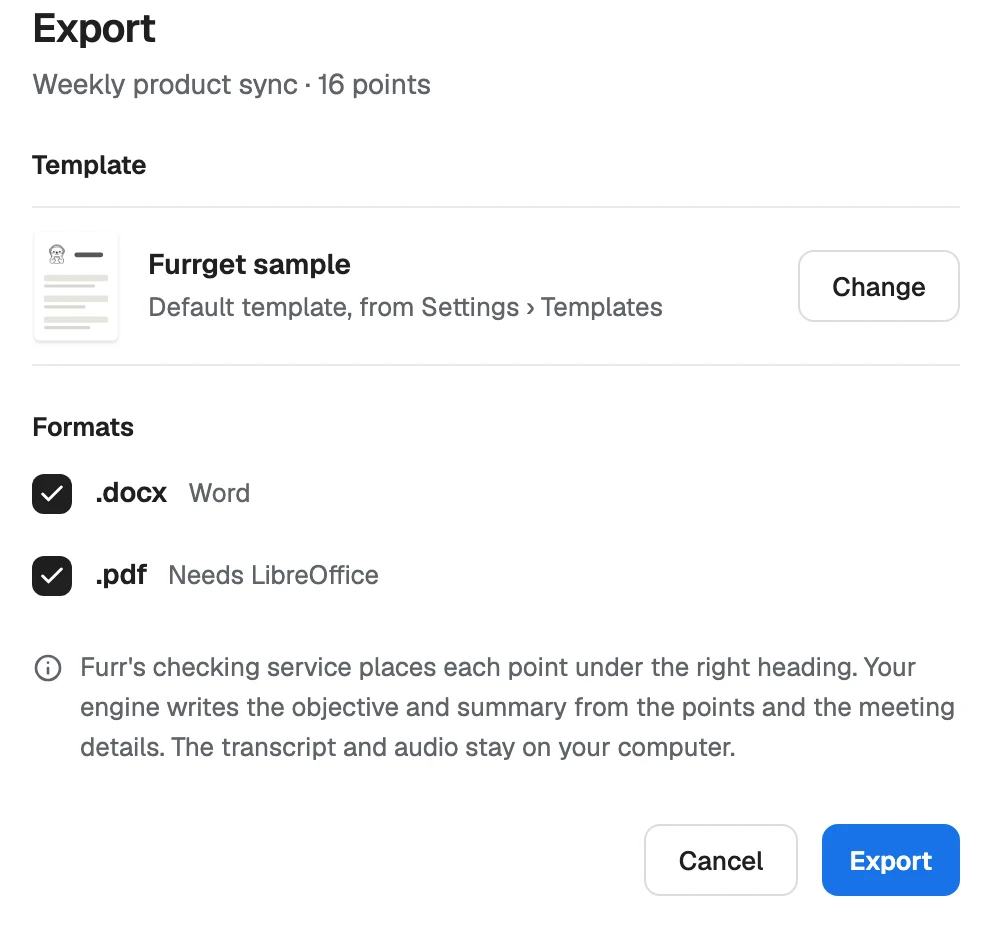
- Check the Template. It shows your default template; Change picks another one for this export only.
- Formats: Word (
.docx) is always written. PDF needs LibreOffice installed on your computer. - The sheet says what will be sent to write the minutes. If you have not agreed to a service yet, choose Review and allow first.
- Choose Export.
When it finishes, Minutes exported lists the files. Show in Finder (or Show in File Explorer) opens the folder, and Open in Word opens the document.
What you get
| File | For |
|---|---|
<meeting-title>.docx |
The minutes on your template, ready to send |
<meeting-title>.pdf |
The same, as PDF, when LibreOffice is installed |
minutes.md |
The minutes as Markdown |
review.md |
For you, not the client: the points Furr left out and where each point came from |
The files are saved with the meeting, in Furrget’s folder on your computer.
To make the objective and summary, Furrget sends only Furr’s checked points and the meeting facts, never the transcript.
Use your own template
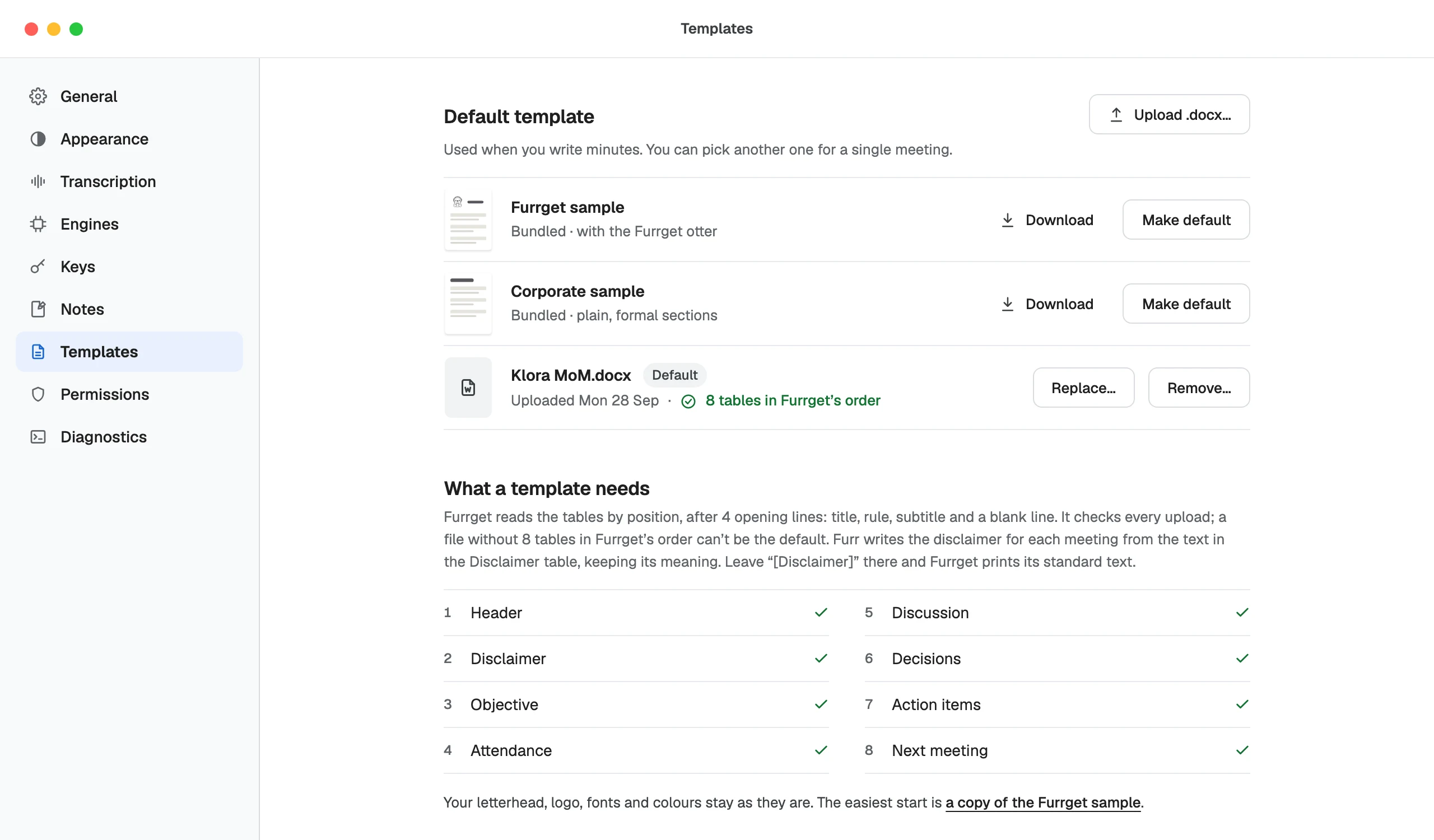
Open Settings › Templates.
- Upload .docx… adds your template. Furrget checks it and keeps it only if it can read it.
- Make default uses it for every export. Replace… and Remove… manage it. If you remove the default, Furrget goes back to the Furrget sample.
- The bundled Furrget sample and Corporate sample can be downloaded as a starting point.
What a template needs
Furrget fills your template by position. After four opening lines (title, a rule, a subtitle and a blank line), it expects eight tables in this order:
- Header
- Disclaimer
- Objective
- Attendance
- Discussion
- Decisions
- Action items
- Next meeting
Your letterhead, logo, fonts and colours stay as they are. The simplest way to start is to download a sample and restyle it.
The Disclaimer table is yours. Leave [Disclaimer] in it and Furrget prints its standard text. Write your own words there and Furr writes this meeting’s version from them, keeping their meaning: it adds no duty, party or promise and never prints a deadline date. If the check fails, your words are printed as they are, and review.md says why. A Confidential meeting always gets your words as written.