
Getting started
Install Furrget on a Mac, go through setup, and record your first meeting.
What you need
| macOS | Windows (coming soon) | |
|---|---|---|
| Computer | Apple Silicon (M1 or later) | 64-bit PC |
| System | macOS 14.2 or later | Windows 10 (22H2) or Windows 11 |
| Installer | Furrget-<version>-mac-arm64.dmg |
Coming soon |
Furrget is in open beta. Download the Mac installer from the download page. Furrget for Windows is coming soon, and the Windows notes in this guide describe what to expect when it arrives.
Install
On a Mac
- Download the
.dmgfrom the download page, open it and drag Furrget into Applications. - Open Furrget from Applications. The app is signed and notarized by Apple, so it opens without extra steps.
On Windows (coming soon)
- Run the
-setup.exe. It installs for your user only and needs no administrator rights. - The beta installer is not signed yet, so Windows SmartScreen may stop it. Choose More info, then Run anyway.
Set up Furrget
The first launch opens Set up Furrget, ten short steps with a step counter at the top.
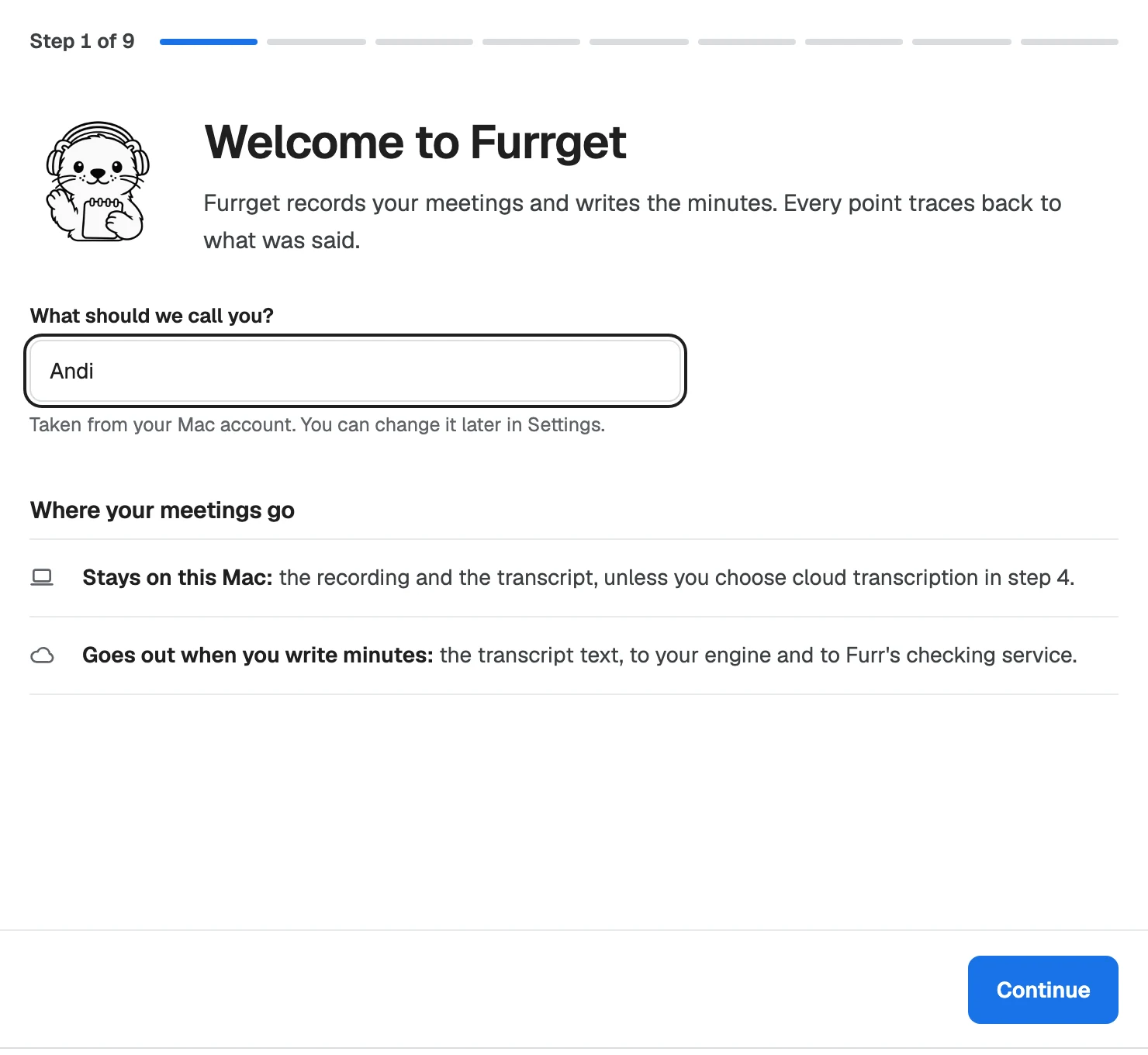
- Welcome to Furrget. Tell Furrget what to call you. On a Mac it suggests the name on your account.
- Sign in to Furrget. Choose Continue with Google. Furrget opens your browser, and the window carries on by itself once you have signed in there. If the browser cannot come back to Furrget, type the 6-digit code it shows into the window. Google shares only your email address, and Furrget never reads your mail or files. Once you are signed in, recording and transcribing on this Mac work without the internet. There is no way to skip this step, with two exceptions. If the sign-in fails or is refused, Not now appears and carries on without an account. Offline, Continue with Google is off until you are back, and Not now is there too. Your own keys stay optional.
- An account Furrget has not invited yet still signs in, and then waits. Furr’s checks are free for it, and Furrget’s engine opens when you are invited. See Furrget’s engine.
- Your microphone. Choose Allow the microphone and say something until the bar shows Hearing you. If nothing moves, the step tells you where the setting is: System Settings › Privacy & Security › Microphone on a Mac, Settings › Privacy & security › Microphone on Windows.
- System audio. This is how Furrget hears the other people on a call, so no bot has to join it.
- On a Mac, choose Open System Settings… and allow Furrget under Screen & System Audio Recording. If macOS asks you to quit and reopen Furrget, do it.
- On Windows no permission is needed.
- Play the test sound to continue.
- Where should transcription run? Furrget measures your computer and recommends one, and On this Mac is the default. When you are signed in, Furrget’s engine is also a choice. It sends the speech in each recording to Furrget, on Cloudflare Workers AI, a few parts at a time, and Furrget keeps no audio and no transcript. It needs no key. Under Slow computer? Use your own cloud key (Groq or Cloudflare) you can choose Groq (cloud) or Cloudflare (cloud) instead. A Groq or Cloudflare choice needs a key that Furrget has checked before you can continue: a Groq key, or a Cloudflare account ID and API token. A Confidential meeting always transcribes on this Mac, whatever you pick. If you choose Cloudflare, Auto is read as Indonesian, and you can pick English later in Settings › Transcription. See Cloud transcription.
- The Whisper model. On a Mac, Furrget downloads whisper-large-v3-turbo, about 1.6 GB, once. The download keeps going if you move on, and a stopped download picks up where it left off. On Windows, Furrget uses faster-whisper on the processor.
- Who writes and checks your notes? The step opens on Furrget’s engine. If you signed in at step 2, it shows who is signed in and Continue carries on. If you chose Not now there, choose Continue with Google here, the same way as in step 2. Furrget’s engine checks every point without a limit and writes up to 20 meeting hours a month, free and with no card. While notes are written, the transcript text goes to Furrget’s engine on Cloudflare and Furrget keeps none of it. Your audio stays on this Mac unless you choose Furrget’s engine for transcription in step 5, and a Confidential meeting is written on this Mac.
- Choose Use my own key instead to use an AI account of your own. Four services show with the same weight and none is picked at first: Anthropic, OpenAI, Cloudflare Workers AI and On this Mac, a model you run with Ollama. Pick one and Continue opens its page, and Furrget’s engine above them takes you back.
- On the Anthropic and OpenAI pages, Get my key opens the company’s site, where you make the key. Paste it here and Furrget tests it by itself with a request that only asks for the list of models, so no meeting text is sent. Each use is paid and billed by that company, and a Claude or ChatGPT plan does not cover it.
- Cloudflare Workers AI asks for your account ID and an API token. A model on this Mac asks for its address.
- Under More ways to write are Claude Code, Codex and any OpenAI-compatible service. Each says where your text goes.
- One way is enough. If you run setup again, the picker keeps the service you chose last. Set up later skips the step. See Engines and keys.
- Furr checks every point. Add the key for the checking service, or choose Add later. If you are signed in to Furrget’s engine in step 7, this step is skipped, because signing in covers the checking too.
- Pick a template for your document. Start with Furrget sample or Corporate sample. You can upload your own later in Settings › Templates.
- You’re all set. Choose Open Furrget or New note. The card New to Furrget? has Open the guide.
On a Mac, Furrget lives in the menu bar. On Windows it lives in the taskbar corner, and the last step offers Open taskbar settings so you can pin it there.
Asked once at launch
If you set Furrget up before sign-in was part of setup, it asks you once when it opens, and it stays on the screen until you sign in. It never covers a recording that is running. Offline, it says signing in waits until you are back and offers Use this Mac offline, which lets you carry on until the network returns. After a sign-in that failed or was refused, Not now puts it away for that run.
After you sign in
The first time you are signed in with setup finished, a sheet, Choose how Furrget works, asks three things. Done saves your choices and Skip answers it without changing anything. Esc puts it away until the next launch.
- Transcription. On this Mac keeps the audio here. Furrget’s engine, shown when your plan includes it, is faster on a slow Mac: the audio goes to Furrget, which keeps none of it. Picking it asks for its agreement on the same sheet, with the box Send the speech as people talk, for live points left unticked. See Cloud transcription.
- Notes. Furrget’s engine writes and checks your notes, live points and Ask. My own keys uses Anthropic, OpenAI, Cloudflare or a model on this Mac, which you add in Settings. An account that is waiting for access sees Furrget’s engine switched off and starts on its own keys.
- Where your meetings are kept. They stay on this Mac. Sync notes and transcripts and Sync audio are marked Coming soon and cannot be switched on. Confidential meetings never leave this Mac, whatever you choose.
Open this guide again
The transcription step and the key pages of setup end with Not sure? Read the guide, and the last step has Open the guide. On a Mac, Help › Furrget Guide in the menu bar opens it at any time.
Go back and forward
Furrget keeps the pages you have been to, like a browser. On a Mac trackpad, swipe right with two fingers to go back and swipe left to go forward (this is how a Mac scrolls by default, and the swipe follows your scroll direction). A scroll with Shift held is not a swipe. On a mouse, use its Back and Forward buttons. From the keyboard, press ⌘[ and ⌘] on a Mac, or Ctrl+[ and Ctrl+] on Windows. Nothing happens when there is no page that way, and a swipe over a text box or a wide table that scrolls sideways is left to that box or table.
Record your first meeting
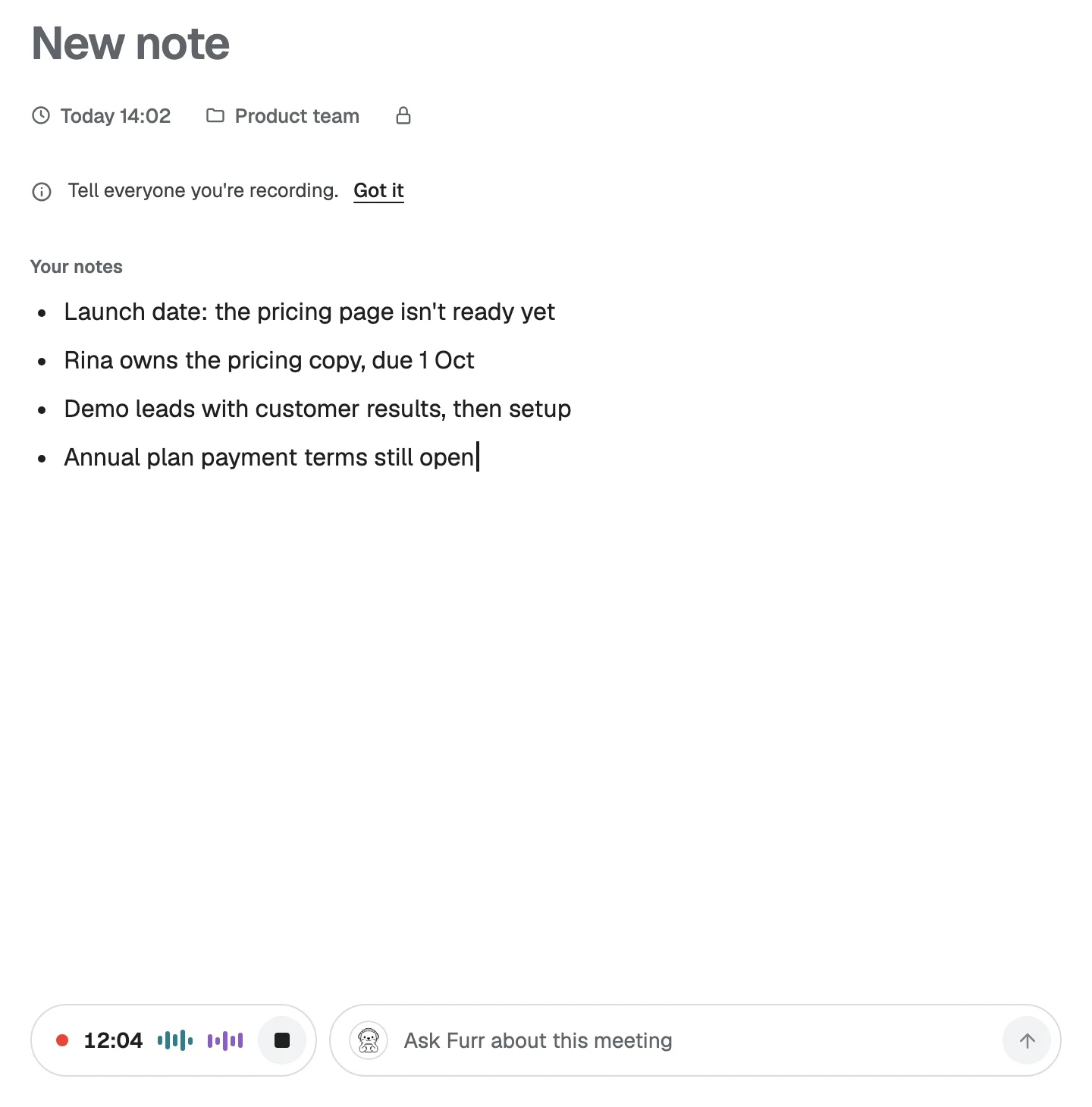
- Choose New note: at the top right of the window, from the menu bar or taskbar icon, or on the last setup step. A note opens. It does not record yet, so you can type an agenda first.
- When the meeting starts, press ● Record at the bottom of the note.
- The first time, Furrget reminds you: Tell everyone you’re recording. Choose Got it.
- Take notes if you like. Your own notes guide Furr later.
- Press Stop when the meeting ends. Then read Furr’s notes.
Furrget can also offer to record when a meeting starts in another app. See Recording and the rail.