
Live points and live help
Draft points and live help that appear while you record, what they need, and where their text goes.
Live points are draft points that appear beside your notes while you record, so you can see what has been decided or promised without waiting for Stop. They are drafts. After you stop, Furr writes its own notes from the full transcript, and those replace them.
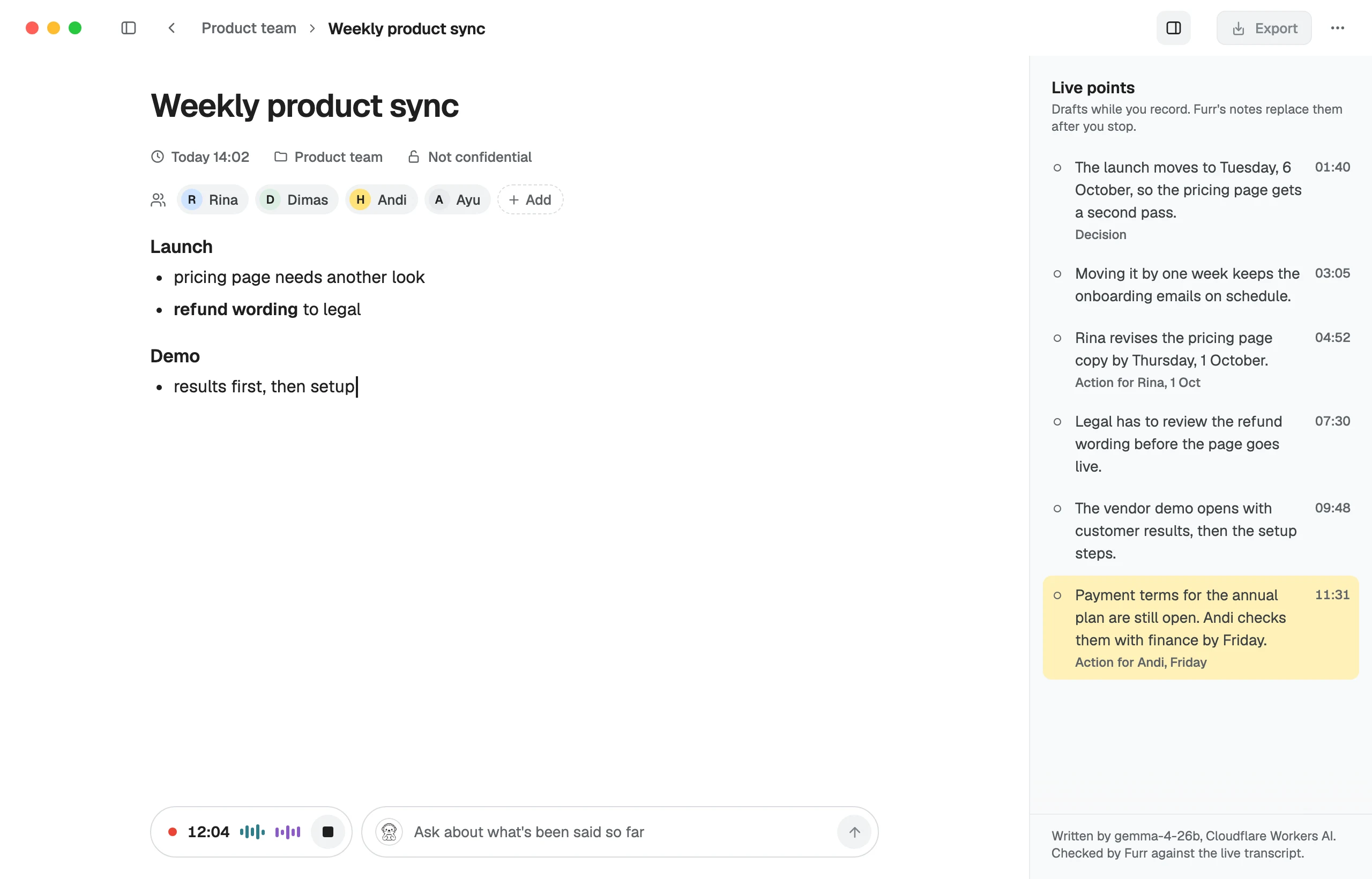
Live points are off until you agree to them. They work on a Mac only for now. On Furrget’s engine they also need the speech sent as people talk, which you tick on the transcription sheet or turn on under Settings › Transcription (see Where the text goes). The first one arrives in about 15 seconds after people start talking. The compact window shows them too (see In the compact window).
Turn them on
- Pick an engine that can write them. Signed in to Furrget on a plan that includes live points (the beta and the cloud plan), you can use Furrget’s engine. Its live points also need the speech sent as people talk, as described under Where the text goes. Or add an online engine with your own key under Settings › Engines, such as the Anthropic API, the OpenAI API, Cloudflare Workers AI or your own online endpoint. See Writing services. Claude Code and Codex do not write live points, and neither does an engine that runs on your computer. An endpoint on DeepSeek’s own API is not accepted anywhere in Furrget, and Cloudflare Workers AI is the way to use DeepSeek’s models.
- Open Settings › Notes. Under Live points and live help, turn on Use live points and live help. The first time, Furrget asks Turn on live points? and says where the text goes. Choose Turn on, or Not now.
- Under Engine for live points, pick which engine writes them. Where live text goes lists the engine, which writes draft points and answers your questions, and the checking service, which checks every draft point.
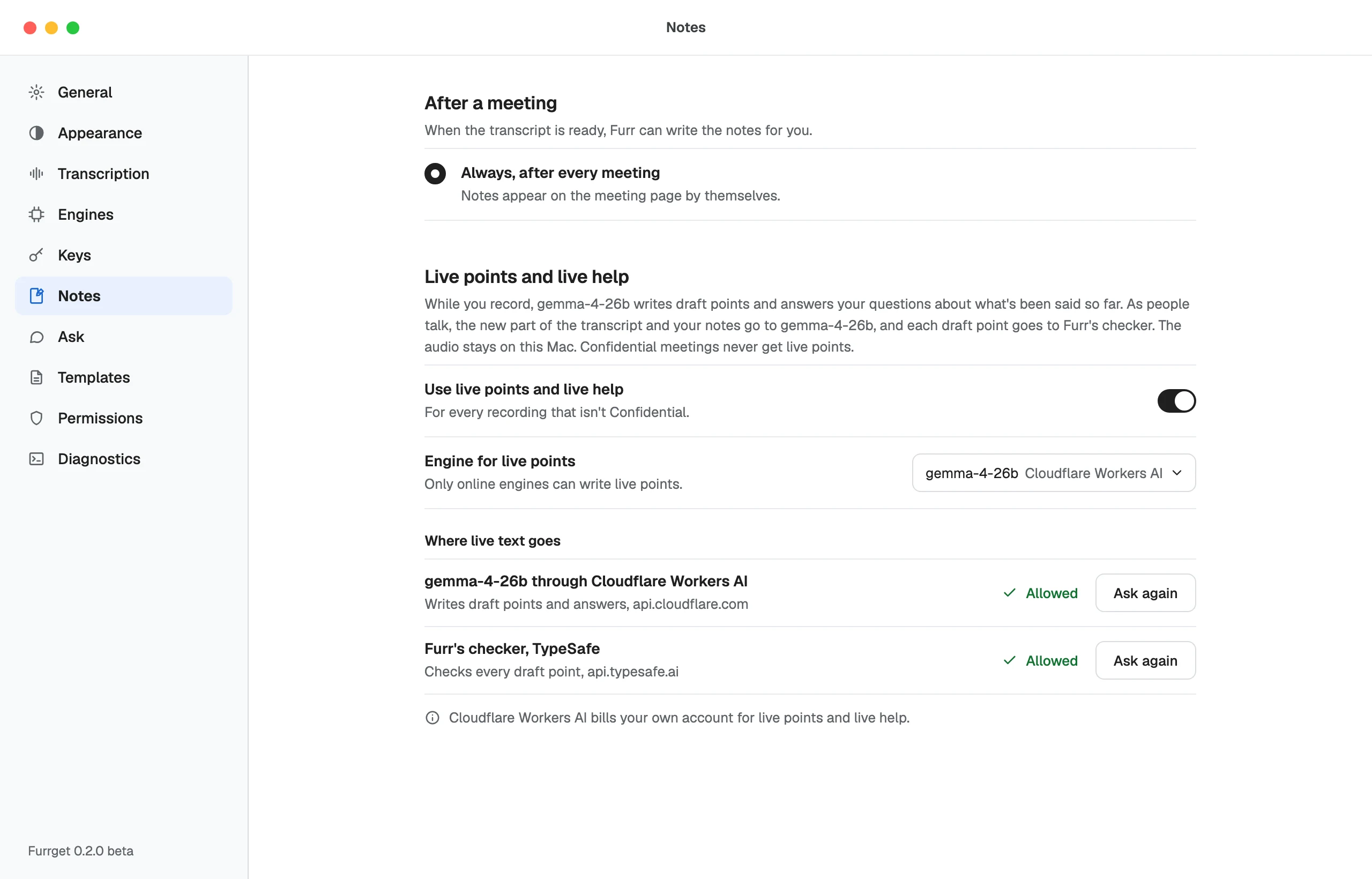
With no suitable engine, the block says None of your engines can write live points and links to Settings › Engines. An engine with your own key bills your own account for live points and live help. Furrget’s engine uses your Furrget plan. Furrget’s engine is the one in use only when you have no engine of your own, and you can pick it under Engine for live points. Furrget keeps your session open while you record and signs you in again by itself every ten minutes. If it cannot, the list says so and links to Settings › Account.
What the list shows
- Live points lists the drafts as people talk, and the newest one joins the end. Nothing above it moves. Until the first one arrives it says Points appear here as people talk.
- A draft has a hollow dot instead of Furr’s check mark. It is marked Decision or Action, with the owner and the due date when they were said.
- Point at a draft, or move to it with the keyboard, to see From the live transcript: who said it, when, and that Furr checked it against the live transcript.
- If you scroll up, a New points button brings you back to the end.
- In the header of the meeting, Hide live points closes the list and Show live points opens it again, with the number of drafts. In a narrow window the list starts hidden.
- A line under the list says when something is wrong, such as being offline, an engine that answers slowly, or Furr’s checker being unavailable. The recording is not affected, and Furr’s notes still cover the whole recording.
- After three passes in a row fail or run slow, the line reads Live points aren’t coming through right now. It goes away when a pass is done.
- When live points for a meeting have reached their limit, the line reads Live points stopped for this meeting. Furr’s notes still arrive after you stop. Furr’s notes are not affected.
In the compact window
When the compact window has live points, a line sits above its bottom bar: how many drafts there are, the time the newest was said, and the newest in one line. Before the first draft, while the list is hidden and in a Confidential meeting, there is no line. Choose it to open a drawer, Live points and transcript, with two tabs, Live points and Transcript, so you can switch between the drafts and the transcript so far while you record. Pause or Resume sits beside the tabs.
Live help in the Ask bar
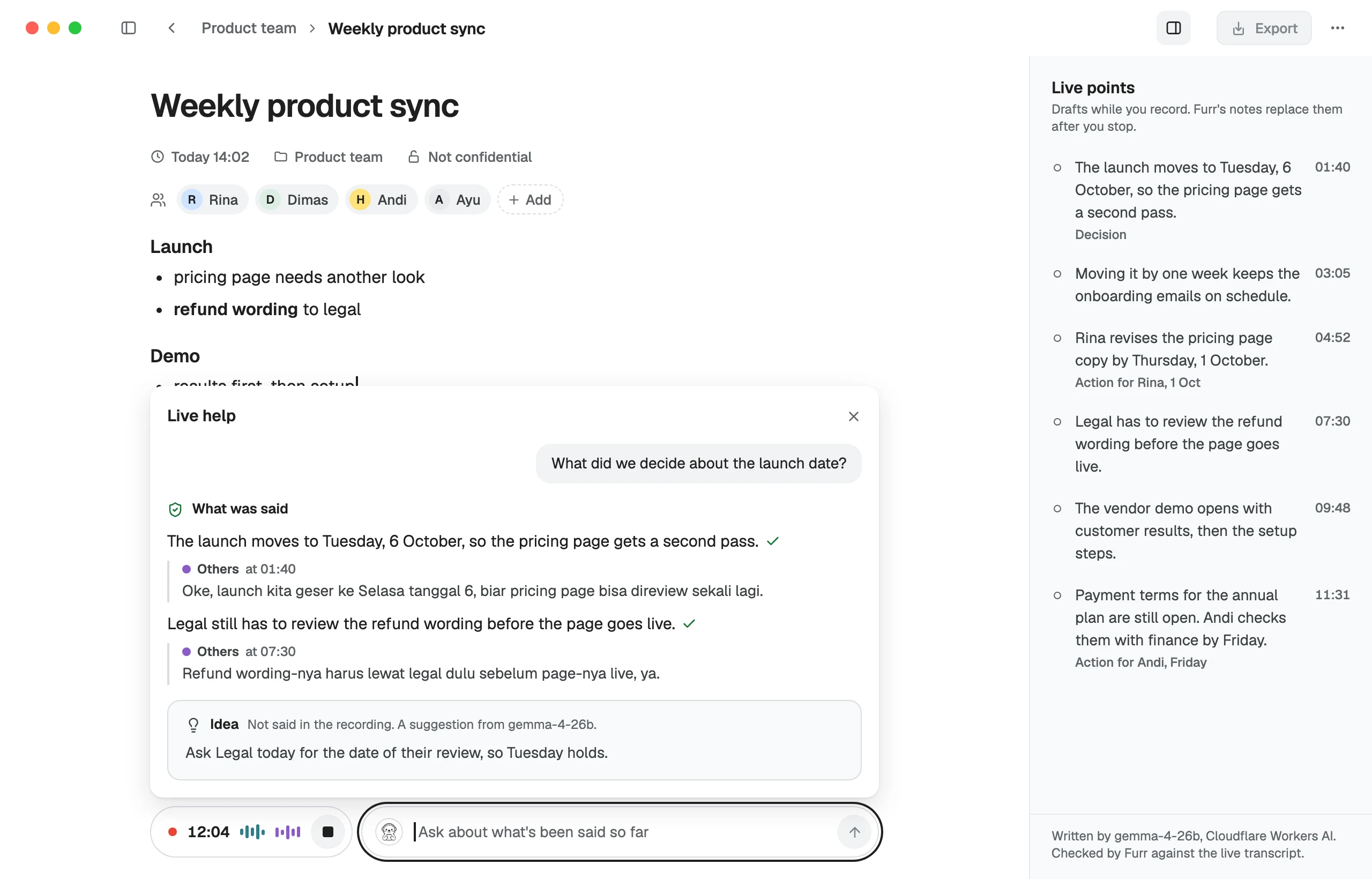
While you record with live points on, the bar at the bottom of the meeting reads Ask about what’s been said so far. Type a question and press Ask. The answer opens in a Live help card above the bar, and Close or Esc closes it.
- What was said is checked by Furr and quotes the recording.
- Idea is a suggestion from your engine. It was not said in the recording, and it says so.
- Nothing said so far answers this. appears when the recording has no answer, and a sentence that what was said does not support is left out and counted.
- You can ask up to 30 questions for one recording. After you stop, the bar goes back to Ask Furr about this meeting.
What happens to the drafts
When Furr’s notes arrive, they take the list’s place, and one line near the top says what became of the drafts, for example Live points: 9 kept, 3 merged, 2 left out. 4 new points. A part that is zero is not written. Review opens What happened to the live points, which lists every draft in time order and says in words whether it was Kept, Merged into one point or Left out, and why. A left out draft says either that the full transcript supports it but Furr’s notes left it out, or that the full transcript does not support it. Points no draft covered are marked New. The sheet is for reading only. Choose Done to close it.
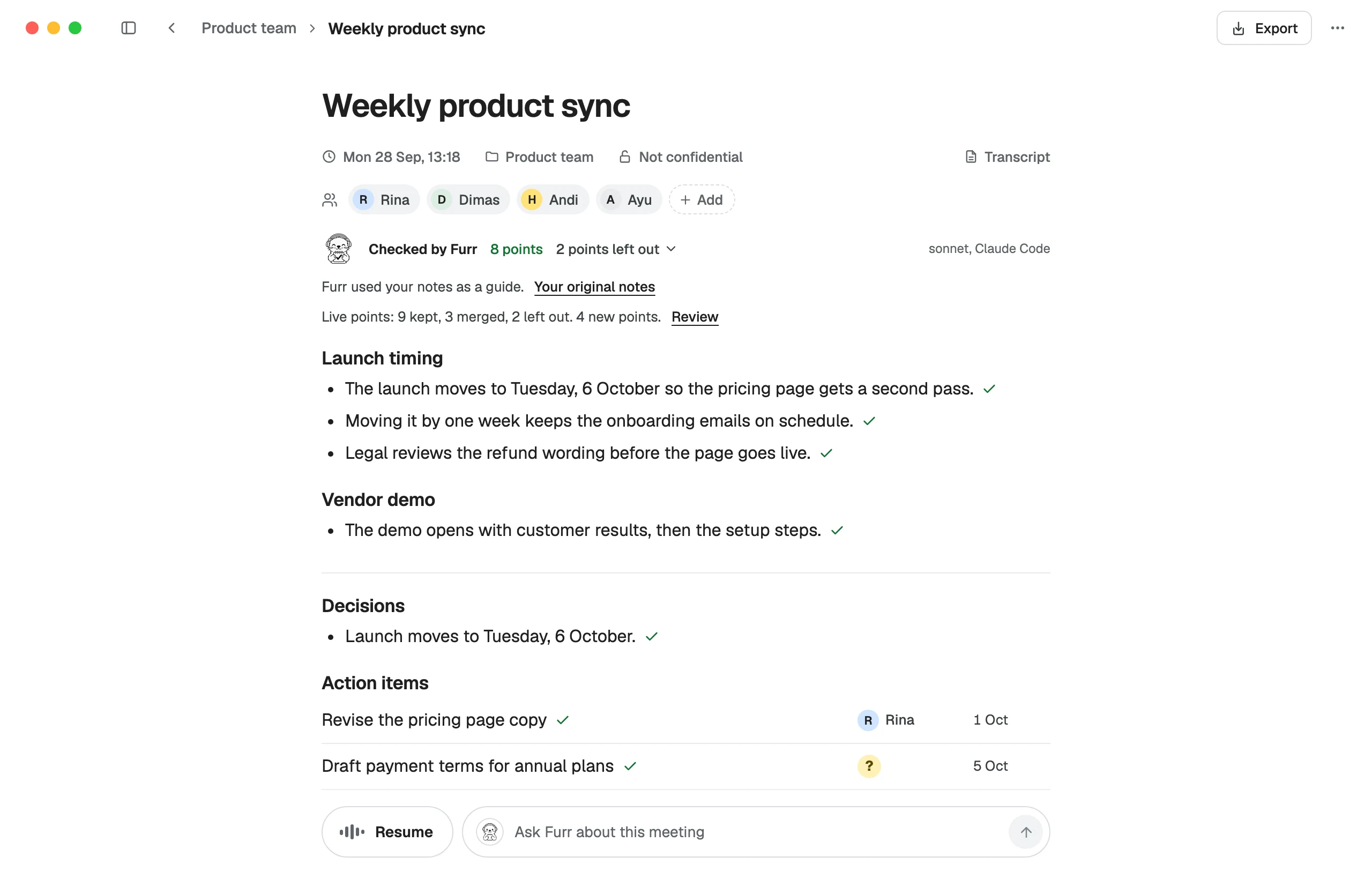
The line and the sheet are only a comparison. Furr’s own check still decides every point, and live points never reach the export.
Confidential meetings
A Confidential meeting never gets live points or live help. If you mark a meeting Confidential while you record, they stop at once and the list says This meeting is now Confidential. Live points and live help stopped. When the Undo window closes, Furrget deletes the live points and live help questions it kept for that meeting, so nothing of them stays, and Furr’s notes are written by an engine on your computer, as for any Confidential meeting. Text already sent before you marked it stays with the service it went to.
Where the text goes
As people talk, the new part of the transcript and your notes go to your live engine as text (to Furrget on Cloudflare when you use Furrget’s engine, which keeps none of it), and each draft point with the lines it cites goes to the checking service. The audio never leaves your computer, except on Furrget’s engine when you have sent the speech as people talk: then a few seconds of it at a time go to Furrget while live points or live help run, and Furrget keeps none of it. Confidential meetings never send audio. Live points and live help questions stay in the meeting’s folder on your computer and go with the meeting when you delete it. See What leaves, step by step.