
Projects
Group meetings by client or project, see open actions, and ask questions across a project.
Create a project
In the sidebar, under Projects, choose New project. Names are unique and up to 60 characters. Right-click a project to Rename or Delete it. Deleting a project keeps its meetings. They move to No project.
Put meetings in a project
- On a meeting page, pick the project in the details row. New project… creates one on the spot.
- In All meetings, a meeting’s menu has Move to project….
The project page
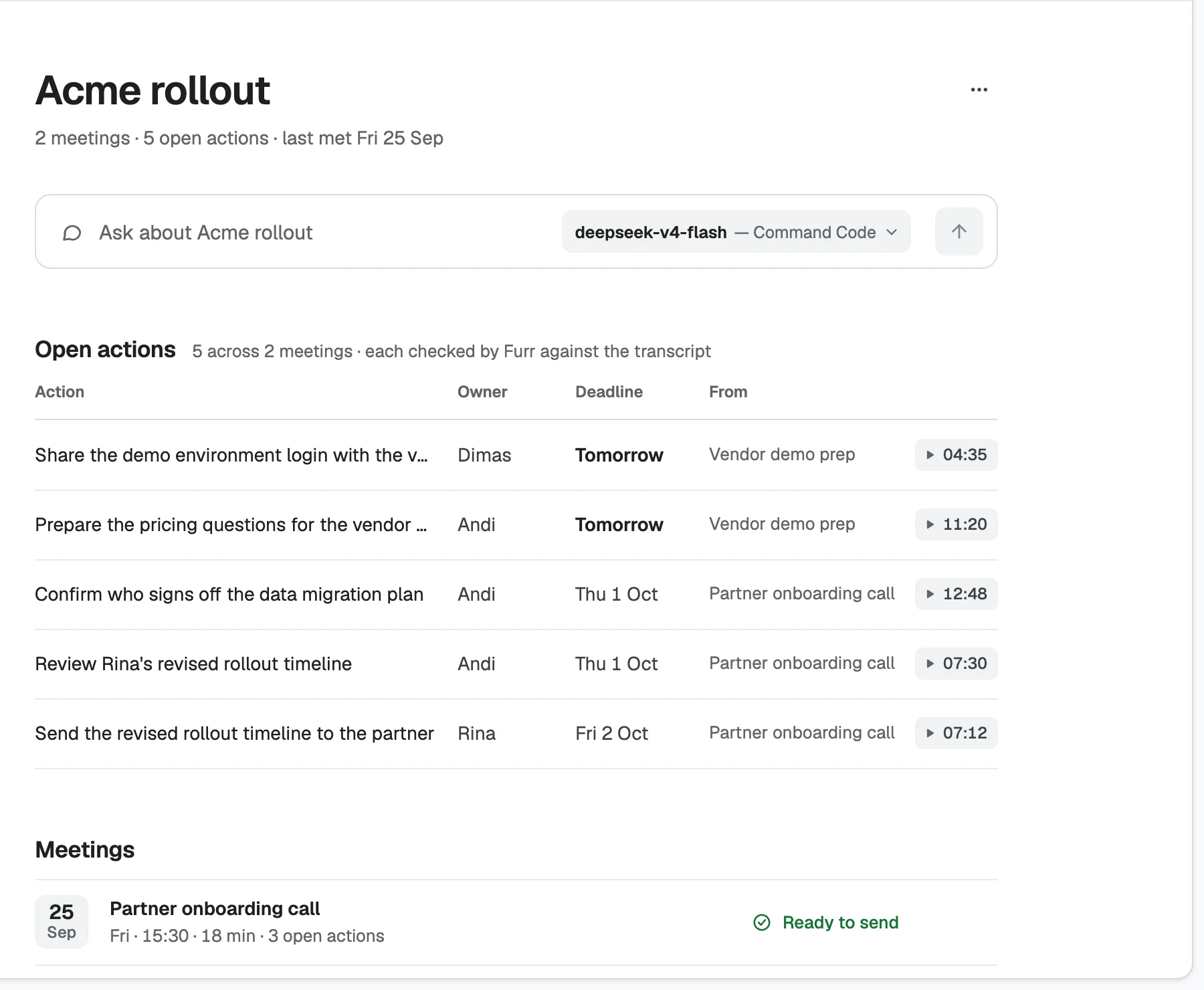
A project page shows how many meetings it has, how many actions are open and when you last met. Below that:
- Ask about the project: questions answered only from its meetings. See Ask.
- Open actions, each with owner, deadline and the meeting it came from, each checked by Furr against the transcript.
- Meetings, the project’s meetings.
Keep a project at hand
To keep a project in view, star it. Choose Add to favourites in the project’s menu, either the Project options button (three dots) on its page or a right-click on it in the sidebar. Starred projects sit at the top of the Projects list and show a filled star. Remove from favourites puts a project back in its place.
Once a meeting in the project is starred, a Favourites chip appears above the project’s meetings. Choose it to see only the starred meetings, and choose it again to see all of them.
All meetings
All meetings lists everything, newest or oldest first, with filters: Favourites, Ready to send, Needs minutes, Didn’t finish, Confidential and No project. A meeting’s menu also has Show in Finder (or File Explorer) and Move to Trash.
To keep a meeting in view, star it. Choose Add to favourites in a meeting’s row menu, or in the more menu in the meeting header, and a filled star marks its row. Remove from favourites takes the star off again. Choose the Favourites filter to see only starred meetings.
Import a recording
Drop audio or video files onto Home, All meetings or a project page, or use Import audio. Furrget accepts WAV, FLAC, MP3, M4A, MP4 and MOV, and imports several files one after another. Transcription starts by itself. If new meetings are set to Confidential, imports are too.
Where you drop a file does not decide its project: an imported meeting lands in All meetings with no project. Use Move to project… to file it.