
Privacy and Confidential meetings
Exactly what stays on your computer, what leaves and when, and what Confidential changes.
Your meetings live in a folder on your computer, and nothing syncs. Furrget asks you to sign in with Google, and it uses that only to know it is you. Some steps use services you choose, and Furrget’s engine, which you can use instead of your own. This page lists each one.
What leaves, step by step
| Step | What is sent | To |
|---|---|---|
| Recording | Nothing | Stays on your computer |
| Transcription | Nothing, when it runs on this Mac. Audio, if you choose Furrget’s engine, Groq (cloud) or Cloudflare (cloud): the speech in each recording, compressed, a few at a time, and with Send the speech as people talk, for live points ticked, also a few seconds at a time while people talk | Furrget on Cloudflare, Groq or Cloudflare, if chosen |
| Meeting title (off by default) | The first minutes of the transcript | Your engine |
| Furr’s notes | Transcript lines with times and speakers, your typed notes as guidance | Your engine |
| Live points and live help (off by default, Mac only) | The new part of the transcript and your typed notes as people talk, and your live help questions. On Furrget’s engine with the speech sent as people talk, also a few seconds of audio at a time, only while live points or live help run, and Furrget keeps none of it. Confidential meetings never send audio. Otherwise, never the audio | Your live engine, an online engine with your own key, or Furrget on Cloudflare for the speech |
| Live point check | Each draft point and the lines it cites | The checking service |
| Checking the notes | Each point and the transcript lines around it. For a meeting that is not Confidential, also each note’s kind, owner and due date, and the meeting’s date and project | The checking service |
| Export | Each point and its topic, to place it, and Furr’s checked points, for the summary. Never the transcript | Checking service, your engine |
| Ask | Your question, the chat so far, and the closest quoted lines | Checking service, your engine |
| Ask, small talk such as a greeting | Your message and the chat so far, never quoted lines from your meetings | Your engine, not the checking service |
“Your engine” is the AI you chose in Engines and keys, such as Claude Code or Codex. An engine that runs on your computer, through a localhost endpoint, sends nothing out.
Cloudflare Workers AI receives audio only when you choose Cloudflare (cloud) for transcription, and text only when you choose Cloudflare Workers AI for writing. The Anthropic API and the OpenAI API receive text only, when you choose them for writing. Cloudflare AI Gateway, which Furr’s checker can use, is a separate service. In Settings › Engines, every row says where its text goes.
Signing in and Furrget’s engine
Google shares only your email address with Furrget, and Furrget never reads your mail or files. Signed in, recording and transcribing on this Mac work without the internet.
When you use Furrget’s engine, the text of your notes, live points and Ask goes to Furrget, on Cloudflare, and Furrget keeps none of it. Furr’s checks are processed by TypeSafe: each point and the transcript lines around it go there to be checked. For a meeting that is not Confidential, each note’s kind, owner and due date, and the meeting’s date and project, go there too. Furrget does not say how long TypeSafe or Cloudflare keep text.
If you choose Furrget’s engine for transcription, the speech in each recording goes to Furrget, on Cloudflare Workers AI, a few parts at a time. Furrget keeps no audio and no transcript, and counts only how long the audio was and its language, for your hours. Furrget does not say how long Cloudflare keeps audio. With the speech sent as people talk (see Your consent), a few seconds of it at a time also go to Furrget while live points or live help run, and Furrget keeps none of it. Confidential meetings never send audio. Otherwise your audio stays on this Mac. A Confidential meeting never uses Furrget’s engine or sends anything to be checked.
An account without an invite signs in and waits for beta access. Until it is let in, it has no Furrget writer, no live points and no Ask on Furrget’s engine, and only its email address is known. Furr’s checks are free for it, so they go to TypeSafe as for any account. If it asks for access with Request access, Furrget records that it asked, with no text. The rest of Furrget works with your own keys, and then the text goes only to the services you pick.
Your consent
Nothing is sent until you agree to where it goes:
- Notes: Always, after every meeting or Ask me each time, plus the list of destinations you agreed to. A new engine or checking service asks again.
- Export uses the same list as notes, and asks with Review and allow if something is missing.
- Ask keeps its own list.
- Live points have their own agreement, asked once in a sheet, Turn on live points?, and again when the engine or the checking service changes. See Live points.
- Transcription on Furrget’s engine has its own agreement, asked once in a sheet, Transcribe on Furrget’s engine?, and again if where the audio goes changes. The sheet has a box, Send the speech as people talk, for live points, that is unticked until you tick it. Ticking it agrees to the speech going as people talk, and it is a separate agreement from live points. The switch Live points on Furrget’s engine under Settings › Transcription turns it on or off, and turning it off takes effect at once. On a plan whose hours are shown, these previews count twice for your hours.
- Transcription with your own key: choosing Groq (cloud) or Cloudflare (cloud) is your agreement to send audio to that service.
Confidential meetings
Mark a meeting Confidential when it must not leave your computer:
- In the meeting’s details under its title, choose Not confidential (its tooltip says Mark as Confidential). Furrget asks first: Mark as Confidential? It says what changes, and warns you if no engine on your computer can write notes yet. Choose Mark as Confidential to go on, or Cancel.
- Or choose Record as Confidential when Furrget offers to record a meeting.
- To make it the default, turn on Mark new meetings Confidential in Settings › Transcription.
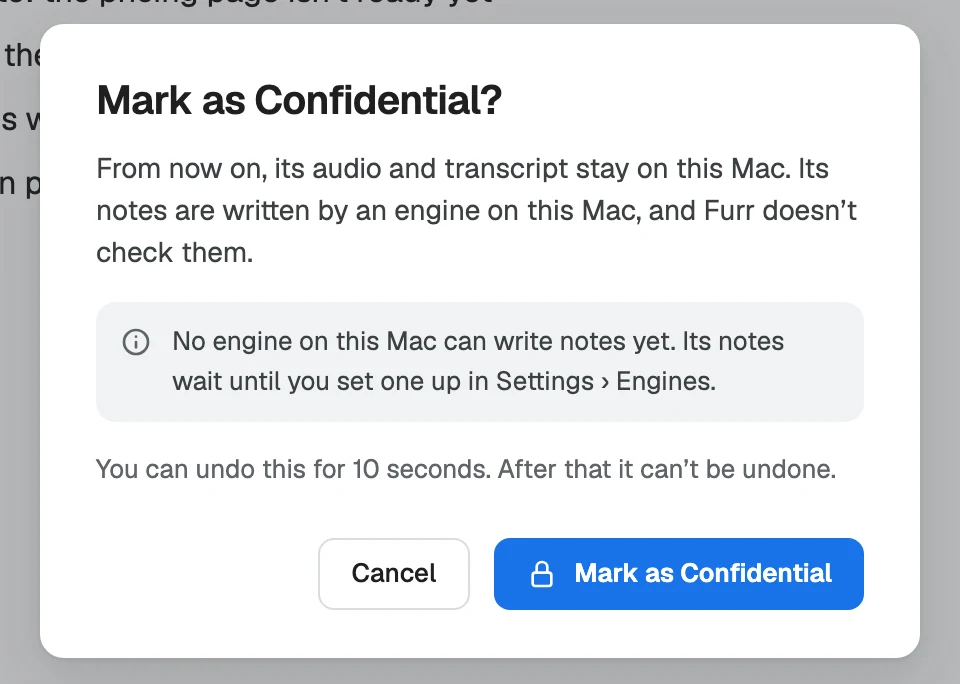
Once marked, the control becomes a Confidential pill. Choose it to read what Confidential means, and which engine on your computer writes the notes.
A Confidential meeting never gets live points or live help. See Live points.
Undo
A meeting you mark from its page can be put back for 10 seconds. A notice, Marked as Confidential, counts it down with Undo, and Undo is also in the pill’s explanation and, if no engine is on your computer, on the notes card (Undo Confidential). Undo puts back what marking changed: a cloud transcription or notes run that marking stopped runs again as you had set it, as long as you still allow it.
After the 10 seconds, it can’t be undone. These can’t be undone at all:
- Record as Confidential, and Mark new meetings Confidential: you chose them before anything recorded, so there is no Undo.
- A meeting marked before you last opened Furrget. Closing Furrget ends the 10 seconds.
Parts already sent to Groq or Cloudflare stay under that service’s policy. Parts already sent to Furrget’s engine were transcribed, and Furrget kept none of them.
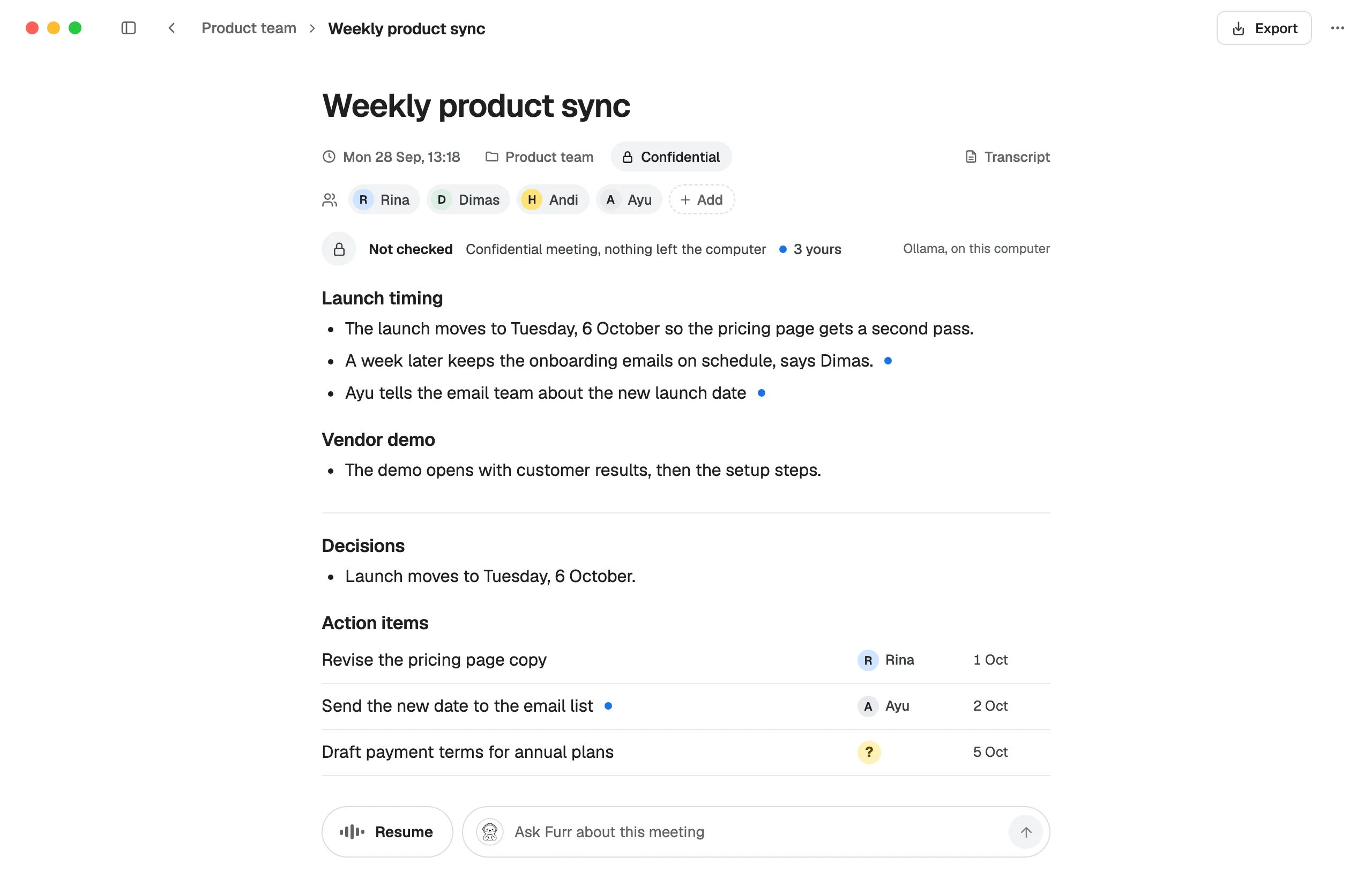
For a Confidential meeting:
- Transcription runs on your computer only, even if you chose Furrget’s engine, Groq (cloud) or Cloudflare (cloud).
- No automatic title.
- Cloudflare Workers AI, the Anthropic API and the OpenAI API are never used: they are not on your computer, so they do not write its notes.
- Notes are written only when you ask, by an engine on your computer, and nothing goes to the checking service, so they show as Not checked. If you have no engine on your computer, the notes card says No engine on this Mac to write notes and offers Set up an engine on this Mac. See Engines and keys.
- Export sends nothing to the checking service and writes the summary only with an engine on your computer.
- Ask leaves the meeting out unless the engine runs on your computer.
If you mark a meeting while its notes are being written by a cloud engine, that job stops and is queued again on your computer. In the compact window, Mark as Confidential asks first in the same way.
Screenshots of shared screens
Screenshots are off by default. When you turn them on (see Screenshots of shared screens), they follow these rules:
- Nothing leaves your computer. The pictures are never sent to Furr’s checker, Furrget’s engine, your engine or any other service. Furr writes notes from the transcript only, and Ask never reads the pictures. Exporting draws them into your files on this computer and sends no picture anywhere.
- Only the meeting window is taken, never your whole screen. A browser is taken only while the meeting’s tab is in front.
- Consent. The first time, a sheet asks for your OK and macOS asks for Screen Recording. In Ask each meeting, Furrget watches without keeping anything until you choose Capture. The rail’s Screens button is the sign that Furrget is watching.
- The room. The meeting page tells you to tell everyone you are capturing shared screens.
- Confidential meetings behave the same as any other: screenshots are local in both cases, and Confidential adds no switch for them. If you do not want them in a Confidential meeting, choose Not this meeting or switch screenshots off.
- Where they are and when they go. Each picture is a file in the meeting’s folder, with a small list. A picture goes when you Remove it (after 8 seconds of Undo) and all of them go with the meeting. If Furrget quits in between, it clears any leftover on the next start.
- Not audio. Delete audio and the daily rule leave the pictures alone.
Where your data is
Everything is in one folder:
- macOS:
~/Library/Application Support/Furrget - Windows:
%LOCALAPPDATA%\Furrget
It holds your recordings, transcripts, notes, minutes, templates, settings and the Ask chats you keep. Keys are stored encrypted. Settings › General › Storage shows how much space Furrget uses and can free some up. See Storage and old recordings.
These files are protected by your computer’s disk encryption: FileVault on a Mac, BitLocker or Device encryption on Windows. Furrget checks whether it is on for the disk that holds this folder, without an administrator password, and the answer stays on your computer. When it is off, Settings › General › Recordings and the bottom of the sidebar say so, with How to turn it on (the maker’s own page) and Not now. Not now hides the card for that disk, and it comes back only if the disk was on and is off again. Finishing setup with the disk still off counts as Not now. The card is never shown while you record, and Furrget never holds back recording, notes or export because of it. If the disk’s state cannot be read, nothing is shown.
Storage and old recordings
Settings › General › Storage shows how much space Furrget uses on your computer and what it is made of: Recordings, Transcription working files, the Whisper model, and Transcripts, notes, minutes and settings.
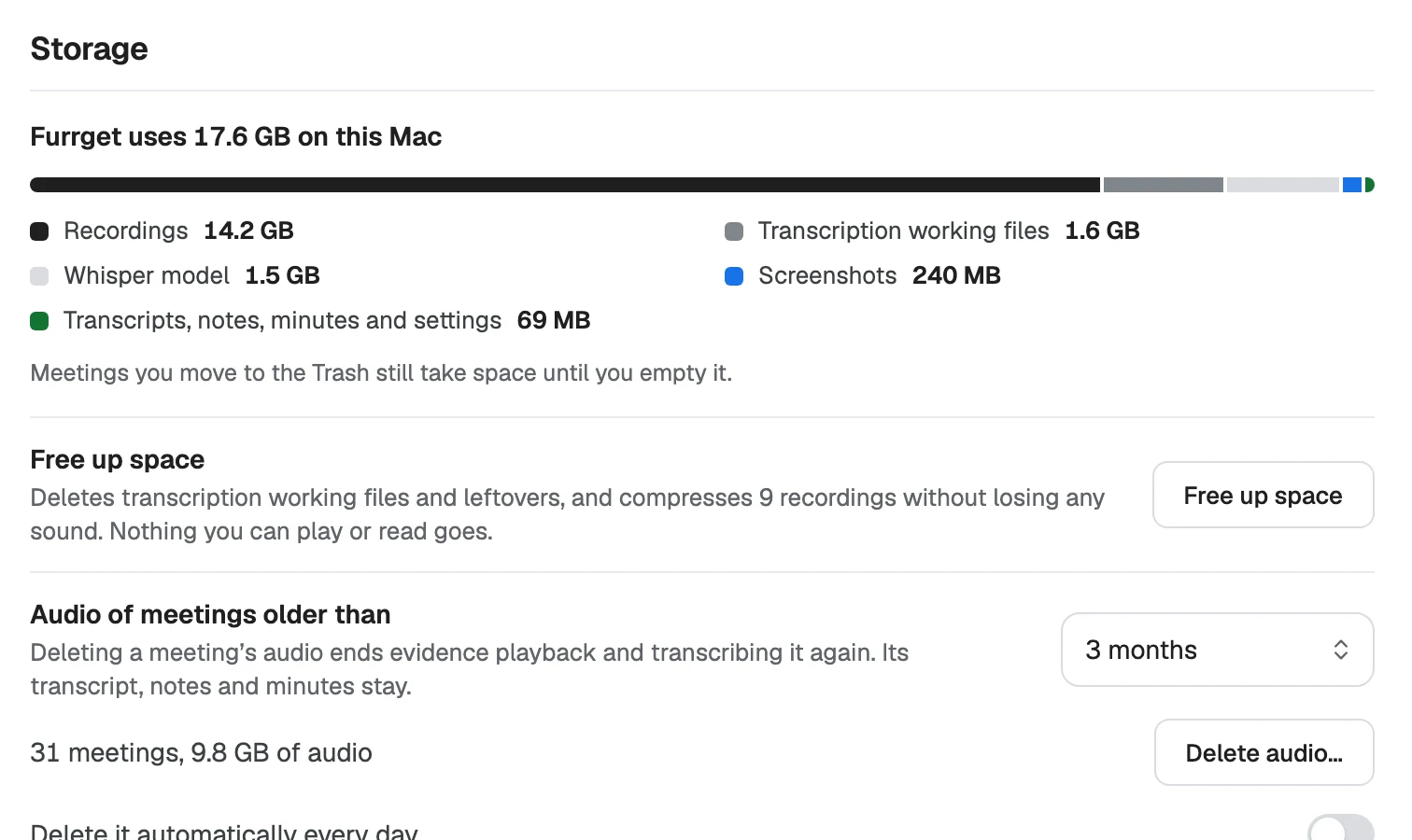
Recordings are what grows. A meeting’s recording takes about 350 MB for each hour, while everything else it keeps (the transcript, notes and minutes) is under 2 MB. Furrget never deletes a meeting, or any sound from its recording, unless you ask. After Furr’s notes are written it compresses the recording without losing any sound, and it clears its own leftover temporary files, so recordings still add up as meetings do.
- Free up space deletes transcription working files and leftovers, and compresses recordings without losing any sound. Nothing you can play or read goes.
- Meetings you move to the Trash still take space until you empty it.
Delete the audio of old meetings
When you no longer need to play back old meetings, you can delete their recordings and keep everything you read.
| What goes | What stays |
|---|---|
| The recording | The transcript, with the time and speaker (You or Others) of every line |
| Playing the moment behind a point, in the notes and in the points left out | Furr’s notes, the decisions and actions, and the quote each checked point rests on |
| Transcribing the meeting again | Generating the notes again, and exporting the minutes |
| Resume on that meeting | The meeting in search, in Ask and in its project |
Every point still traces back to what was said: its quote and time stay. What goes is hearing it.
Under Audio of meetings older than, choose 1 month, 3 months, 6 months or 12 months. The line below says how many meetings that covers and how much space their audio takes, for example 31 meetings, 9.8 GB of audio. A meeting counts by the day it started.
- Choose Delete audio…. Furrget asks Delete the audio of 31 meetings? and says what goes and what stays. Focus starts on Cancel.
- Choose Delete audio to go on. It can’t be undone.
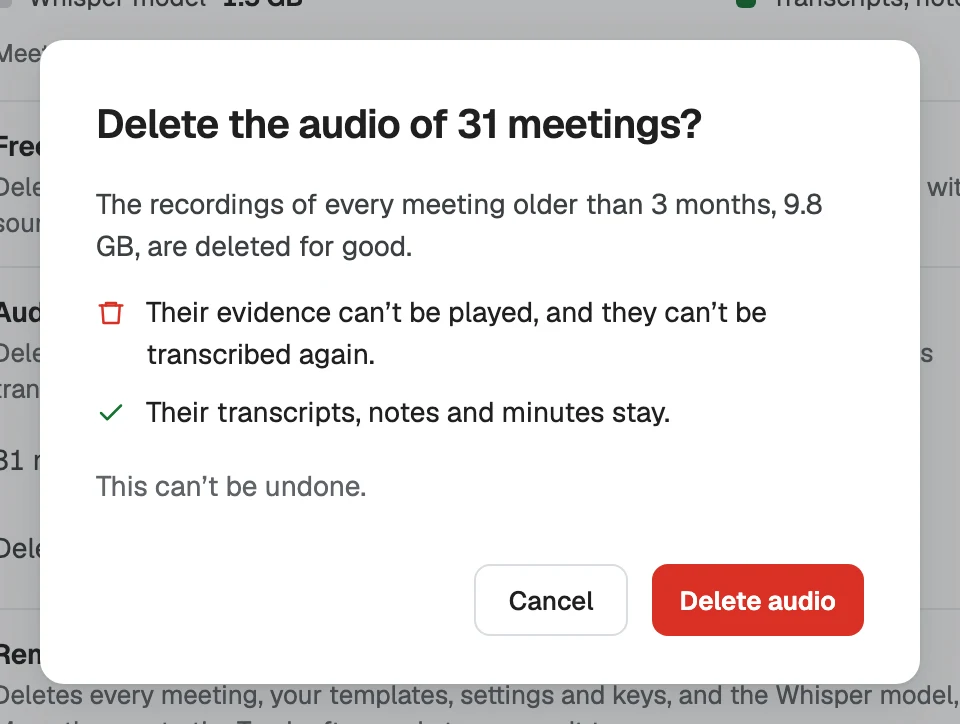
The audio is deleted for good. It does not go to the Trash, so there is nothing to restore, and the space is free at once. Afterwards the line reads No meeting older than 3 months has audio left. and Delete audio… is off until more meetings get that old.
Some meetings always keep their audio:
- A meeting with no transcript yet, or whose transcription failed. Its recording is all there is.
- A meeting that is being recorded, is open to Resume, or has Furrget still working on it.
- A meeting whose recording parts Furrget is still joining.
While you record, Delete audio… is off and says Stop the recording first. Confidential meetings are included like any other.
Delete it automatically every day
The switch Delete it automatically every day applies the same rule for you, with the same number of months. It is off by default.
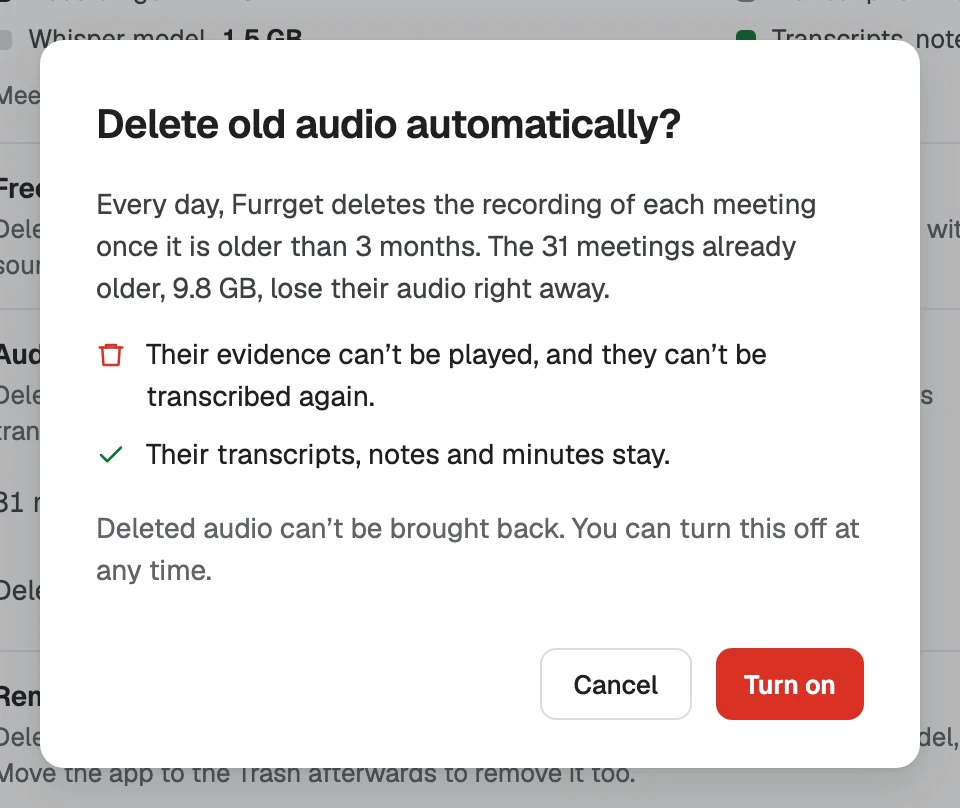
- Turn the switch on. Furrget asks Delete old audio automatically? and says how many meetings lose their audio right away.
- Choose Turn on. The meetings that are already older lose their audio now, and the rule then runs once a day while Furrget is open: about 30 seconds after it starts, every 24 hours after that, and when your computer wakes if the last run was more than a day ago.
Changing the number of months applies from the next run and does not ask again. Turn the switch off at any time, without a question. Audio already deleted is not brought back. The rule never runs while you record: it waits until you stop.
A meeting whose audio was deleted
Under its title, the meeting says Audio deleted on 29 Mar 2027. The transcript, notes and minutes stay.
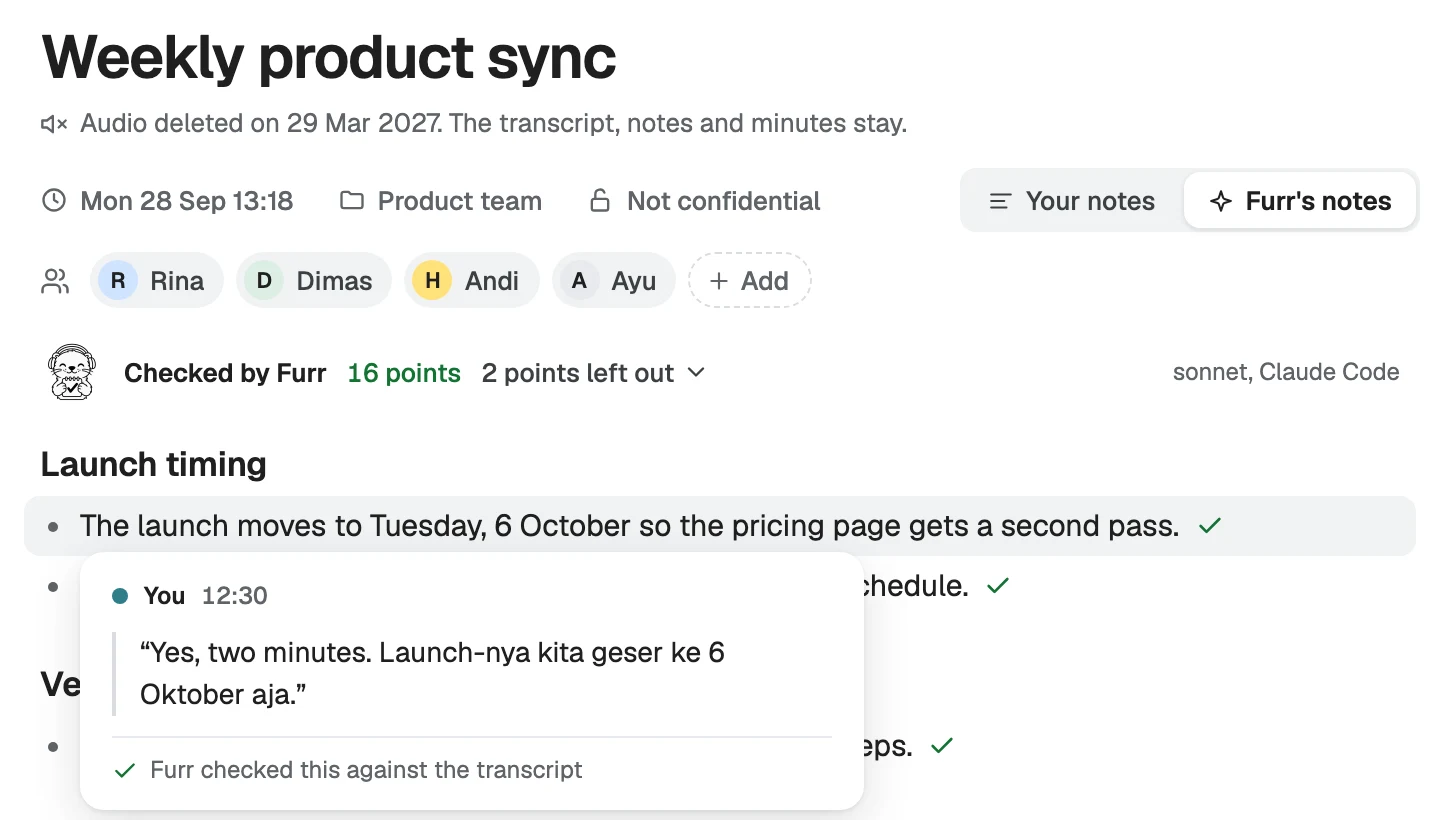
Hovering a point still shows who said it, when, and the quote, but there is no play control, and the points left out and a project’s action items lose theirs too. In Ask, a chip for that meeting shows its time without the play mark. Resume is off, and its tooltip says This meeting’s audio was deleted. Start a new note to record again. To record the conversation again, start a new note.