Furr's notes
How Furr drafts your notes, checks every point against the transcript, and what you can change.
One document
A meeting page has one page of notes, and you type on it the way you do in Apple Notes: paragraphs, lists, headings, bold and italic, paste and undo all work. Before Furr writes, the page holds only your notes, and Furr reads them as guidance. After the meeting Furr drafts its own points from the transcript and checks each one. They land on the same page, under topics, beside your lines.
- A point with a check mark is Furr’s, checked against the transcript.
- A point you edited or added is yours. It has a dot instead of a check mark, because Furr checked the original words, not yours.
Under Furr’s points, one quiet line says Furr used your notes as a guide. Your original notes shows what you typed before Furr wrote. If you kept typing while Furr was writing, the line says how many of your lines are not in the notes yet, and Add to notes puts them in.
When Furr writes the notes
Settings › Notes › After a meeting decides it:
- Always, after every meeting: Furr’s points appear on the meeting page by themselves.
- Ask me each time: the meeting page shows a Generate notes button instead, under what you typed.
The first time, Furrget asks for your OK before any text leaves your computer: Let Furr write notes after your meetings? It lists where the text goes, and a new engine or checking service asks again. Notes are written from the transcript, so writing them sends text, never audio. Audio goes to Groq or Cloudflare only if you chose one of them for transcription. If you chose Cloudflare Workers AI, the Anthropic API or the OpenAI API to write the notes, the text goes to that service. See Privacy and Confidential meetings.
Writing and checking
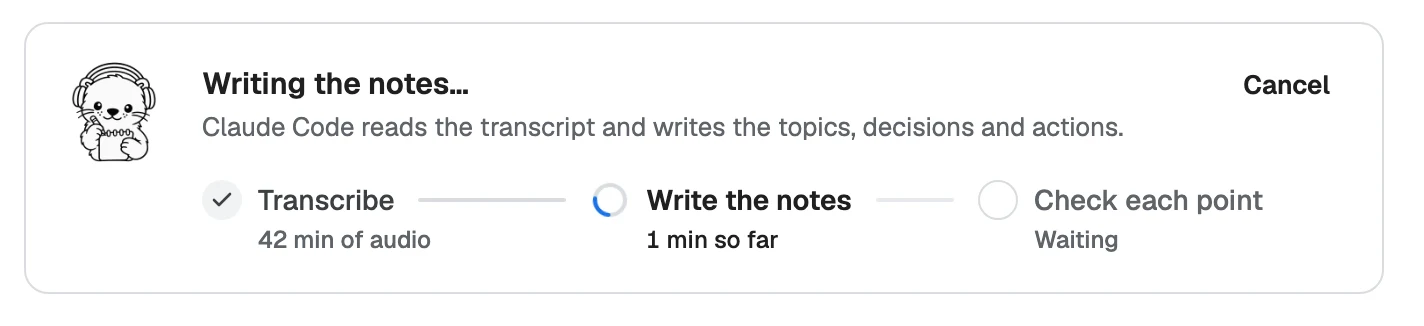
While the notes are made, one card shows the steps: Transcribe, Write the notes and Check each point. A step that has not started says Waiting. The step that is running turns and says how far it is (7 of 9 parts, 12 of 18 points, or how many minutes it has taken, because writing has no count). A step with a count also fills a bar as it goes. Write the notes has none, so it only turns and shows the minutes so far. A check mark appears only on a step that has finished, with what it made, such as 42 min of audio. You can Cancel: the card goes back to Generate notes, and the transcript and any finished draft are kept.
When the notes follow by themselves, the card is there from the moment you stop recording. When they wait for Generate notes, you see Transcribing until the transcript is ready, and the card appears when you choose Generate notes, with Transcribe already done.
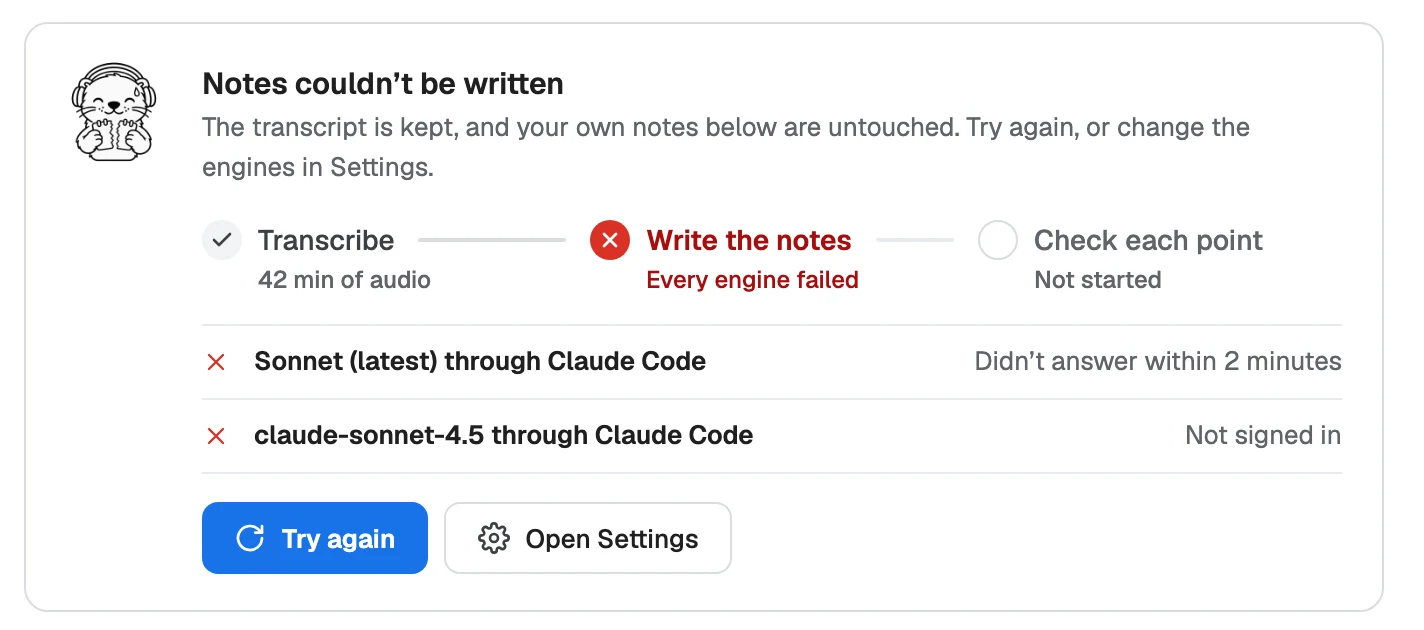
If a step fails, it turns red and says why, and the steps before it stay done.
- Write the notes failing shows Notes couldn’t be written and what each engine said. Choose Try again, or Open Settings to change the engines. The transcript is kept, and your own notes are untouched.
- Check each point failing shows Notes couldn’t be checked. The draft is kept, so Try again only runs the check.
- Transcribe failing has its own page with Try again. See Troubleshooting.
Reading the notes
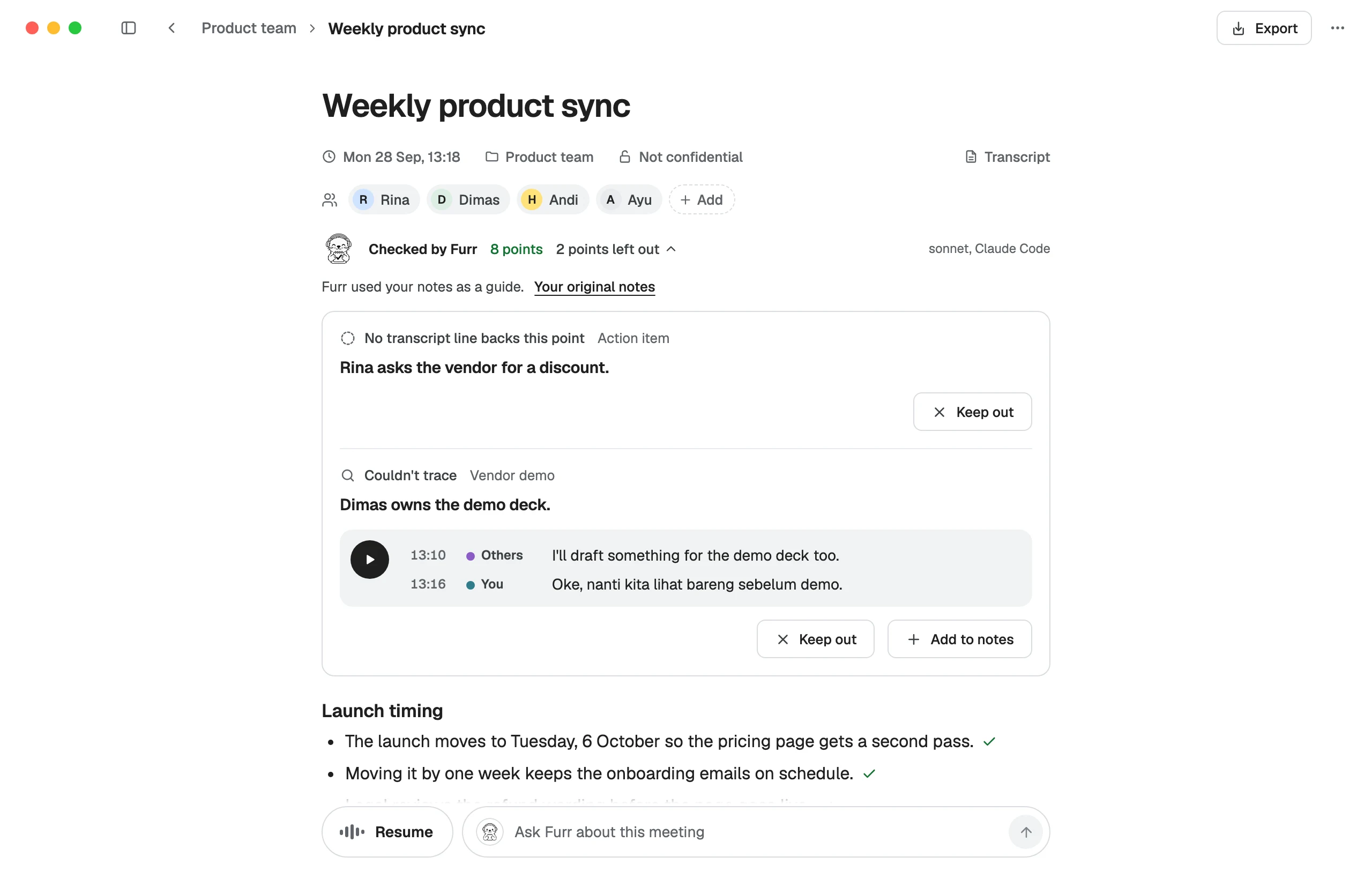
The line at the top of Furr’s notes says who checked them (Checked by Furr), how many points there are (16 points) and how many were left out (2 points left out), with the engine and model on the right.
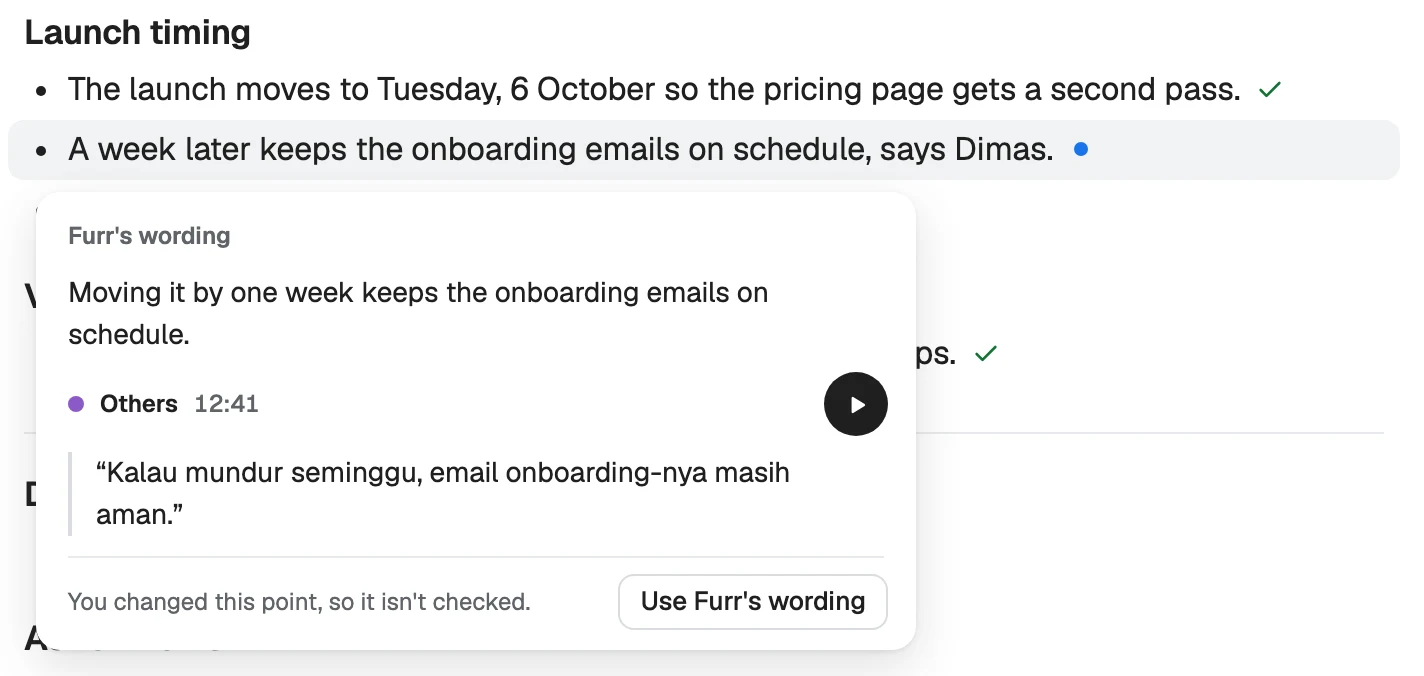
- A point with a check mark was found in the transcript. Hover over it, or move to it with the keyboard, to see who said it, when, and the exact quote. On a point you changed, the same card also shows Furr’s wording, says You changed this point, so it isn’t checked. and offers Use Furr’s wording. Play this passage plays that moment. A meeting whose audio was deleted has nothing to play, so it shows no play control, but the quote stays. See Storage and old recordings.
- Decisions and action items have their own sections. An action item shows an owner and a due date when Furr could confirm them. An owner Furr is unsure of shows ? so you can Check who owns this. Change either by clicking it.
Screenshots under Furr’s points
When screenshots were kept in the meeting (see Screenshots of shared screens), a row of pictures sits under the point that was being discussed while they were on screen. It shows up to three, with +N for the rest. Pictures that fit no point sit in a Screens section at the end.
- Press a picture to open it in a viewer: Shared at 14:32, the app and 1 of 5, with Previous screenshot and Next screenshot.
- Add a caption writes one line, used under the picture in the export.
- Include in export is a switch. Turn it off to leave this picture out of the export.
- Detach from point takes it off its point, and it moves to Screens.
- Play from here plays the recording from that moment. It is not offered when the meeting’s audio was deleted.
- Copy puts the picture on the clipboard (⌘C), and Remove deletes it, with Undo for 8 seconds (⌘Z).
- Esc, or Close, closes the viewer.
If a picture’s file is gone, it says This screenshot’s file is gone. Writing the notes again keeps a picture you detached off every point. The pictures are never read by Furr: notes are written from the transcript only.
Points left out
Furr leaves a point out when no line of the transcript supports it, when it is not what was said, or when it could not be traced. Open points left out to see each one with its reason and the lines Furr compared it with.
- Keep out leaves it out of your minutes.
- Add to notes puts it back. If Furr found it was not said, you are asked first: Furr found this wasn’t said. Add it anyway? A point you add this way becomes your own point, unchecked, and goes into the Word, PDF and Markdown files.
Your choices are listed under Points reviewed, each with Undo.
Editing
- Click anywhere on the page and type. A point is Furr’s only while its words are the ones Furr wrote, so editing one makes it yours, with the dot and the tooltip Yours: edited or added by you, and it loses its check mark.
- Ordinary notes keys work: ⌘B and ⌘I for bold and italic, ⌘Z to undo (Ctrl on Windows).
Writing the notes again
Regenerate notes in the meeting’s menu writes Furr’s points again from the transcript. Furrget asks Regenerate notes? first, and says that your points stay where they are and that a point you deleted can come back. Choose Regenerate or Cancel. It is off while the meeting is recording or paused.
Confidential meetings
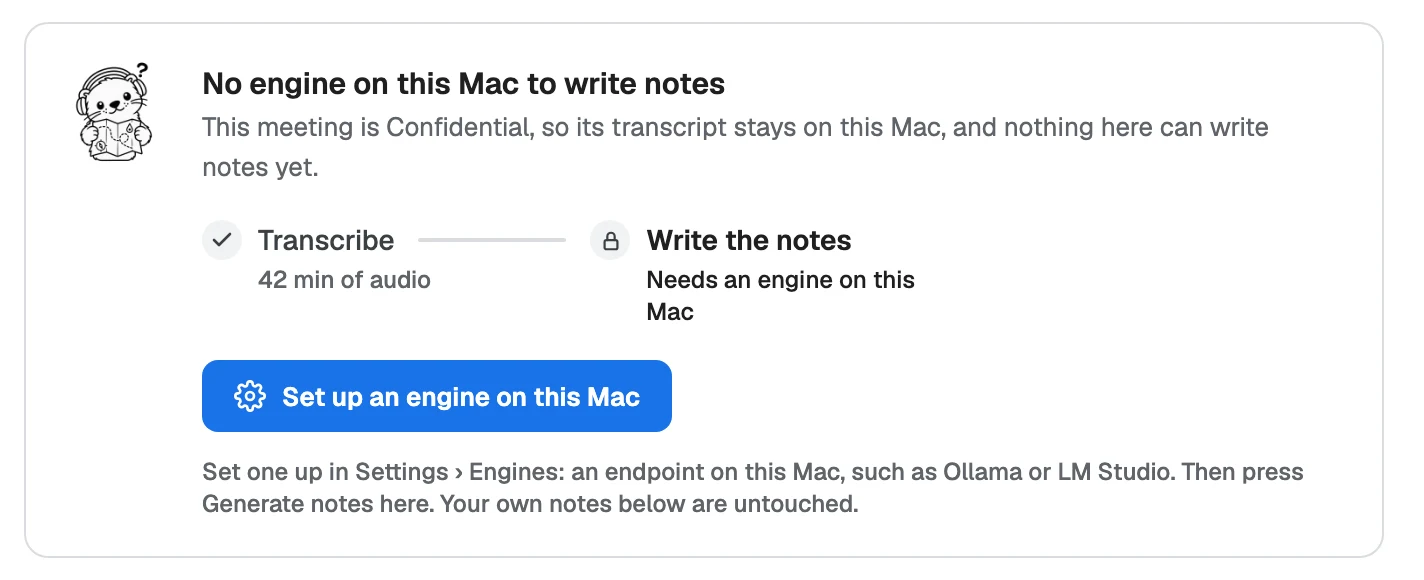
Notes for a Confidential meeting are never written by themselves. Generate notes on this computer uses only an engine that runs on your computer, and nothing goes to the checking service, so the points show Not checked, with the reason Confidential meeting, nothing left the computer.
While they are written, the card shows two steps, Transcribe and Write the notes, and says Not checked by Furr. There is no third step, because Furr checks nothing for a Confidential meeting.
If no engine runs on your computer, the card says No engine on this Mac to write notes (this PC on Windows) and the notes wait. It is a wait, not a failure: choose Set up an engine on this Mac, which opens Settings › Engines, then Generate notes. See Engines and keys. Your own notes are untouched.