
Recording and the rail
How Furrget records, what the rail shows while you are in another app, and what happens after you stop.
What Furrget records
Furrget records two sources at once: your microphone (You) and your computer’s sound, which carries everyone else on the call (Others). Nobody has to admit a bot to the meeting. A recording can run for up to 6 hours.
Start, pause and stop
- In a note, press ● Record. The control shows a clock and the levels of both sources.
- Press Stop when the meeting ends. The control then offers Resume, which continues the same meeting.
- From the compact window you can also Pause, Resume or Stop recording, and the menu bar or taskbar icon has Stop recording.
When a meeting starts in another app
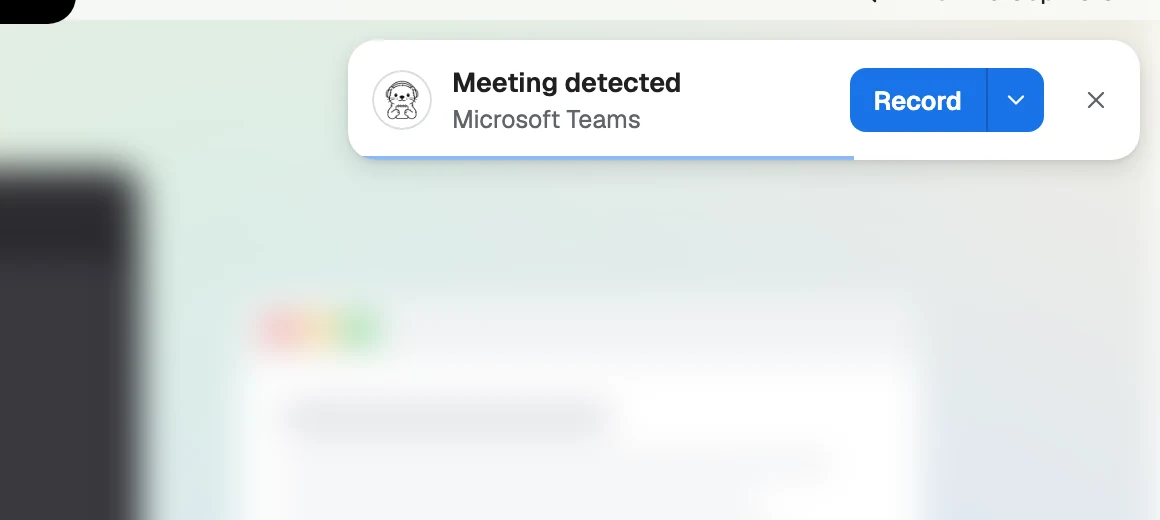
When another app starts using the microphone for a call, Furrget shows Meeting detected in … with these choices:
- Record starts a note and records.
- Record · Confidential does the same for a meeting that must stay on your computer. See Privacy and Confidential meetings.
- Don’t ask for … stops asking for that app.
- Turn off meeting detection stops asking for all apps.
- Dismiss closes it. If you ignore it, it closes by itself.
Nothing records until you press Record. You can switch this off in Settings with Offer to record when a meeting starts.
The rail
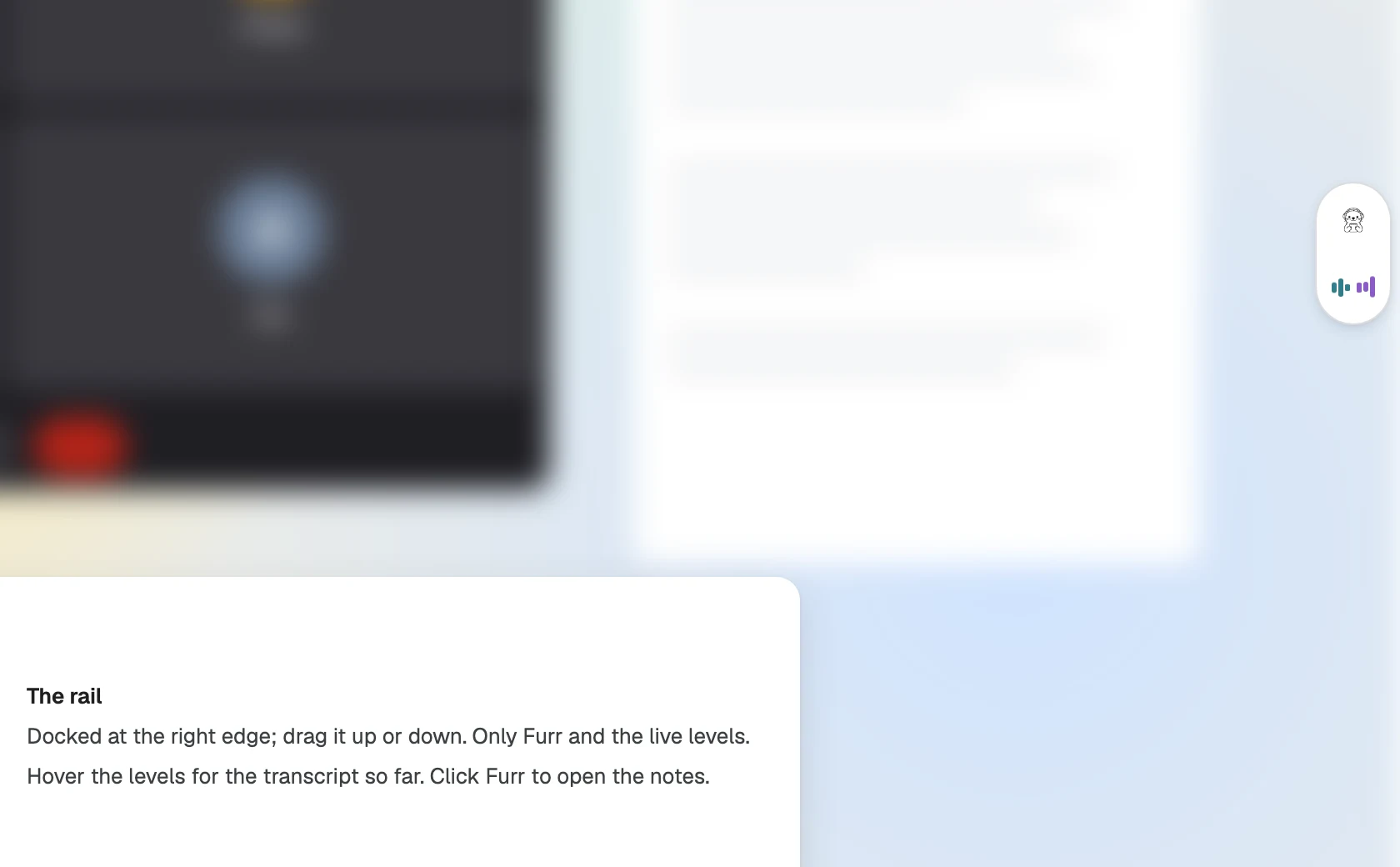
While Furrget records and you work in another app, a small pill called the rail shows Furr and the two sound levels. It hides whenever a Furrget window is in front.
- Open the notes: press Furr on the rail. The note opens in a compact window, where you can pause, stop or read the transcript so far.
- Move it: drag it anywhere. When you let go it snaps to the nearest edge, or to a corner if you drop it close to one. It stands upright on the left and right edges and lies flat along the top and bottom.
- Nudge it: use the arrow keys to move it along its edge.
- Furrget remembers where you put it on each display. If that display is disconnected, the rail moves to your main display.
The rail has no Stop button. Stop from the note, the compact window, or the menu bar or taskbar icon.
When Furrget hears nothing
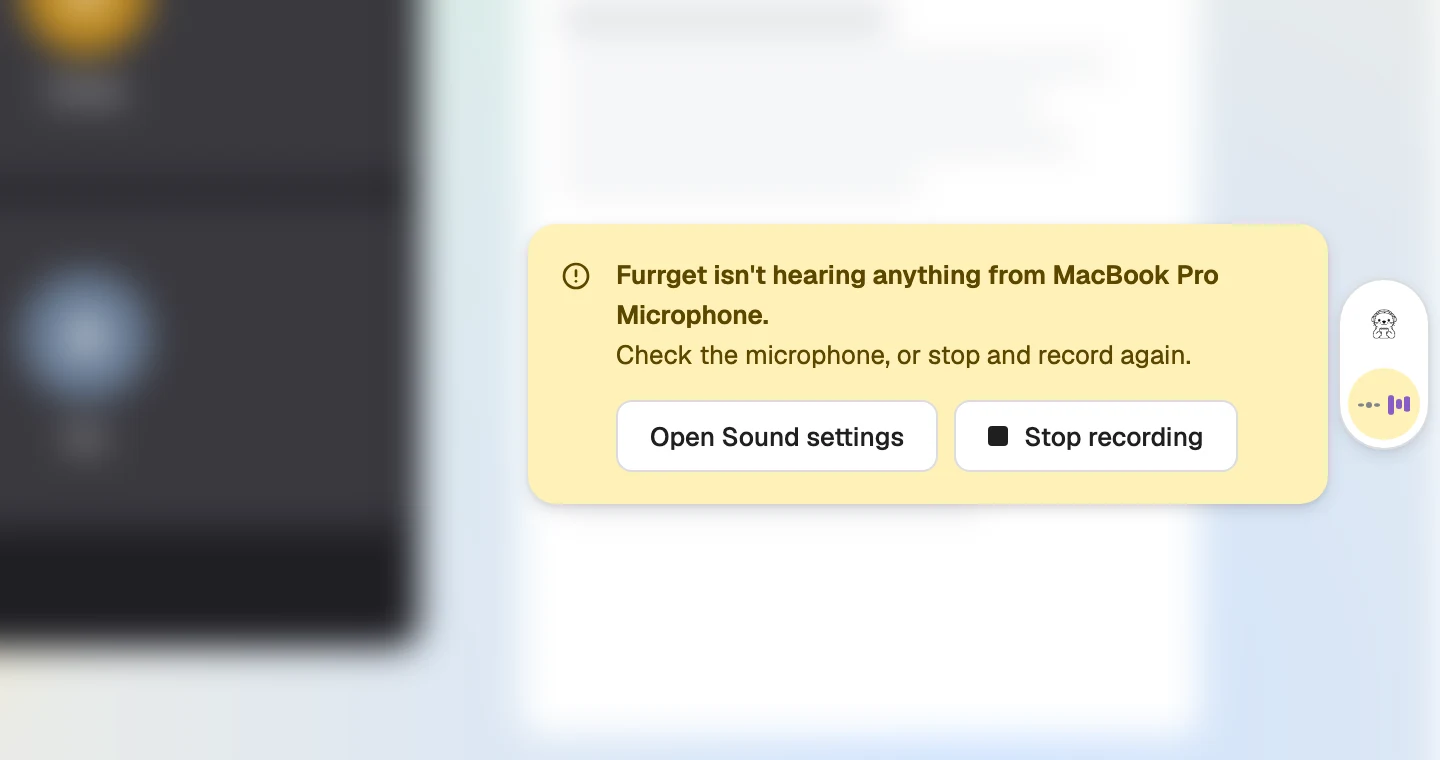
A quiet room is fine. Furrget warns only when no sound reaches it at all for a few seconds, for example when a microphone is unplugged or muted in hardware. It first restarts the capture once by itself; if that does not help, you see:
Furrget isn’t hearing anything from your microphone. Check the microphone, or stop and record again.
Choose Open Sound settings to check the input, or Stop recording and start again. If no Furrget window is in front, a system notification tells you too.
The transcript while you record
With Transcribe while recording on, the compact window shows Transcript so far and updates every minute or so. It runs only when transcription happens on your computer. It is on by default on a Mac and off on Windows.
After you stop
- Furrget transcribes the rest of the meeting and shows its progress in parts.
- Furr’s notes follow: Analyzing transcript…, then the draft is checked point by point. Whether this starts by itself depends on your notes setting. See Furr’s notes.